AI rendering from any 3D software, or from a photo: one image is enough
AutoCAD, Blender, 3ds Max, Rhino, Cedreo, Twinmotion, or a photo of an already furnished room: if your tool exports an image, RenderThink turns it into a photorealistic render in about a minute, faithful to the volumes and materials of the view. No proprietary format, no plugin to install.
14 days, no commitment
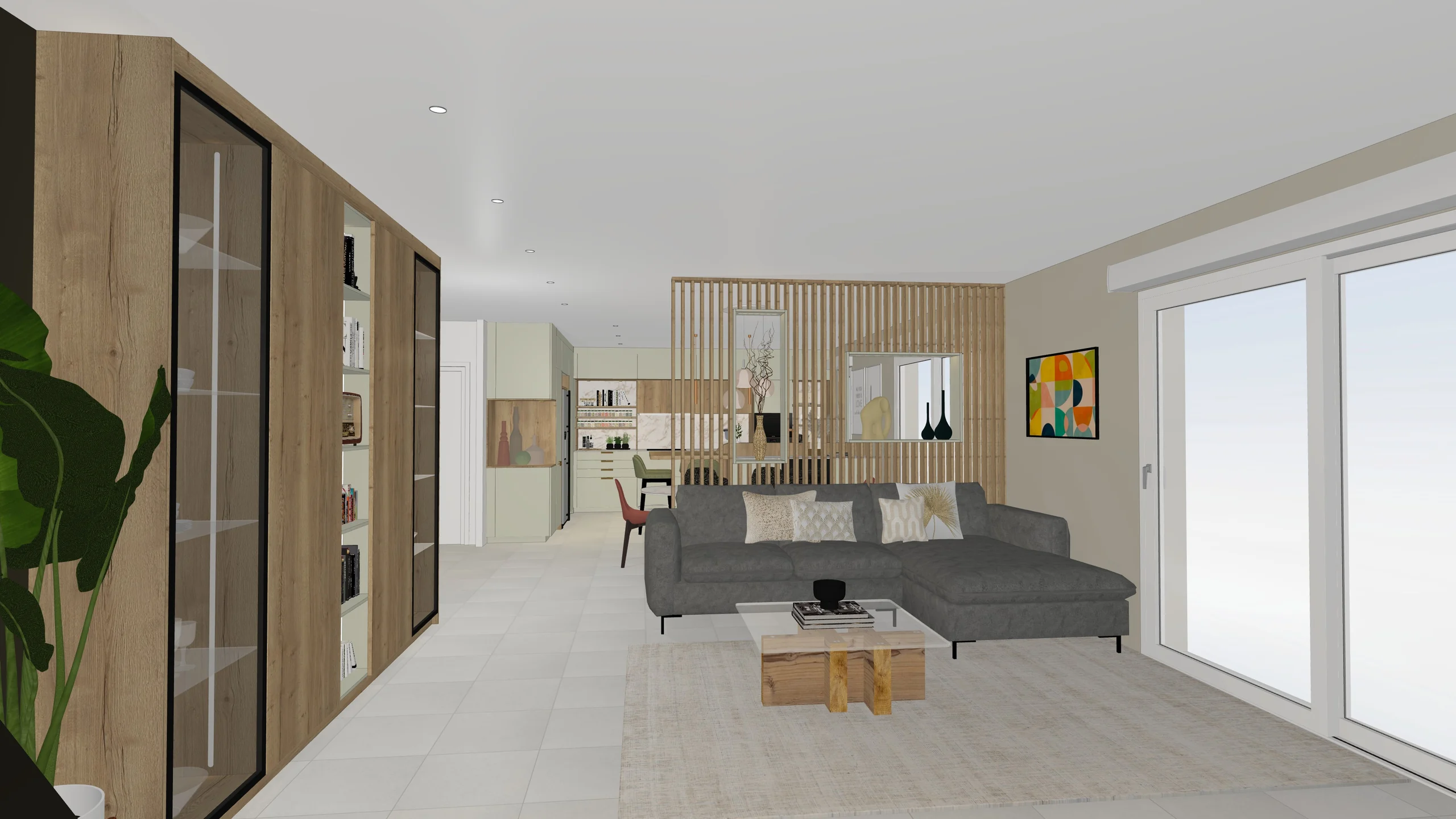
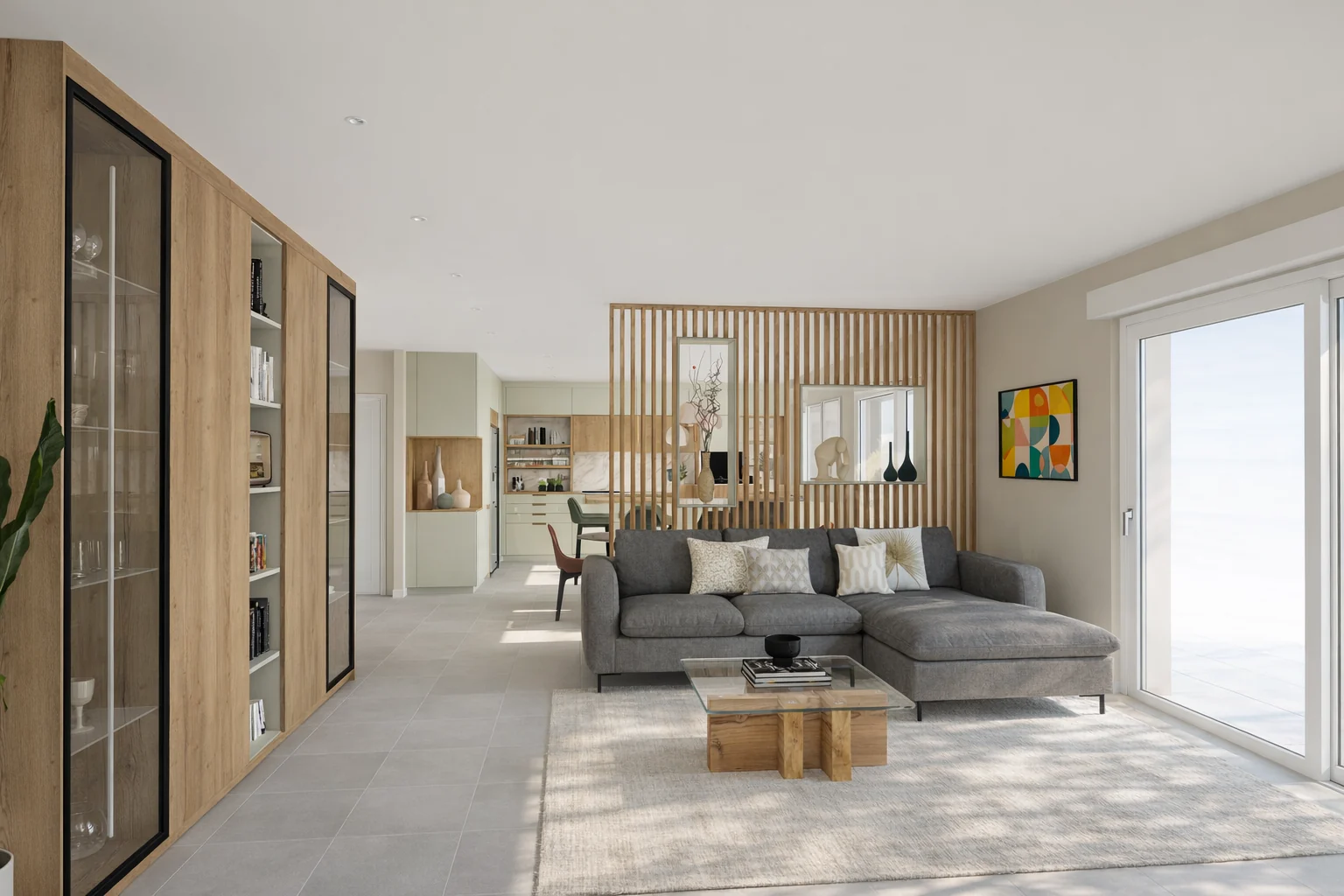
- Median 1K render, under 30 seconds
- 28 s
- Ready for large-format printing
- 8K
- Free trial, no commitment
- 14 days
If your software exports an image, it already works with RenderThink.
An image export as PNG, JPG or WebP
RenderThink does not read 3D files: it starts from an image. Export the view from your software, at the highest resolution possible and preferably PNG, or photograph the room, then drop the file into the Studio, in the browser or in the desktop app. It is the same workflow as from Winner Design, Archicad or Revit; SketchUp, InSitu and KitchenDraw also have a plugin that captures the displayed view.
Export or photograph the view
One image per view, camera at eye level, materials already applied in the model, no dimensions or annotations. PNG, JPG or WebP, 10 MB and 8,192 px at most. A smartphone photo of a furnished room works too.
Drop it in and start the render
Drag the image into the project, pick the resolution, from 1K draft to 8K, and start several views at once. Each render comes back in about a minute, the computation runs on our servers.
Edit on the render
Designate a zone with the brush or smart click and change a material, a colour or a product; add, replace or remove an object. The rest of the image does not move. A decor mood applies to the whole room.
Present through a link
Gather renders, before-and-after comparisons and the mood board in a presentation shared by secure link, with a password and expiry if you wish. The client opens it on any screen, without an account.
What you do from an image
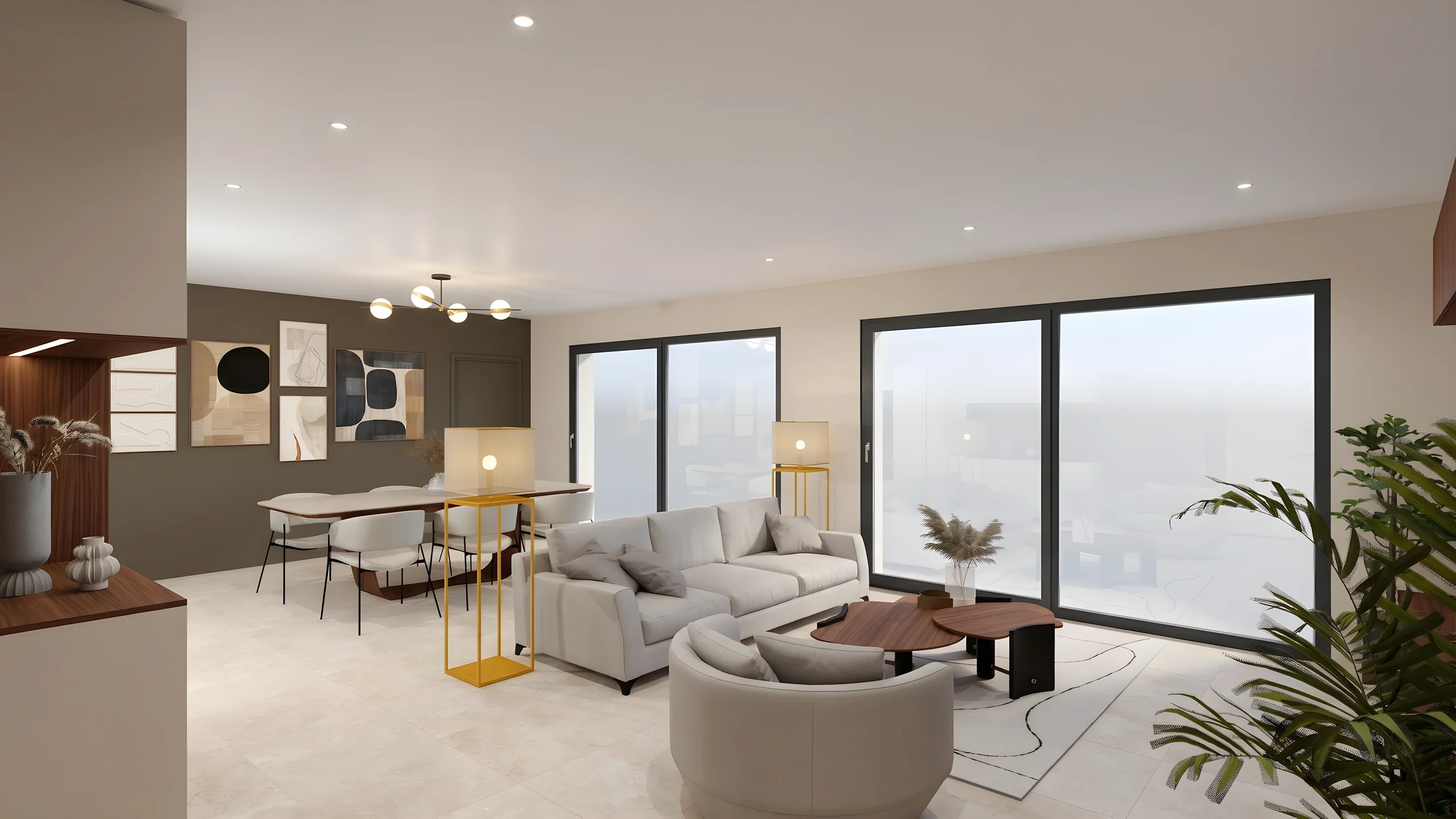 Photorealistic 3D renderingThe export or the photo becomes a photorealistic image, natural light and computed materials, up to 8K for print. Several views start as a batch.
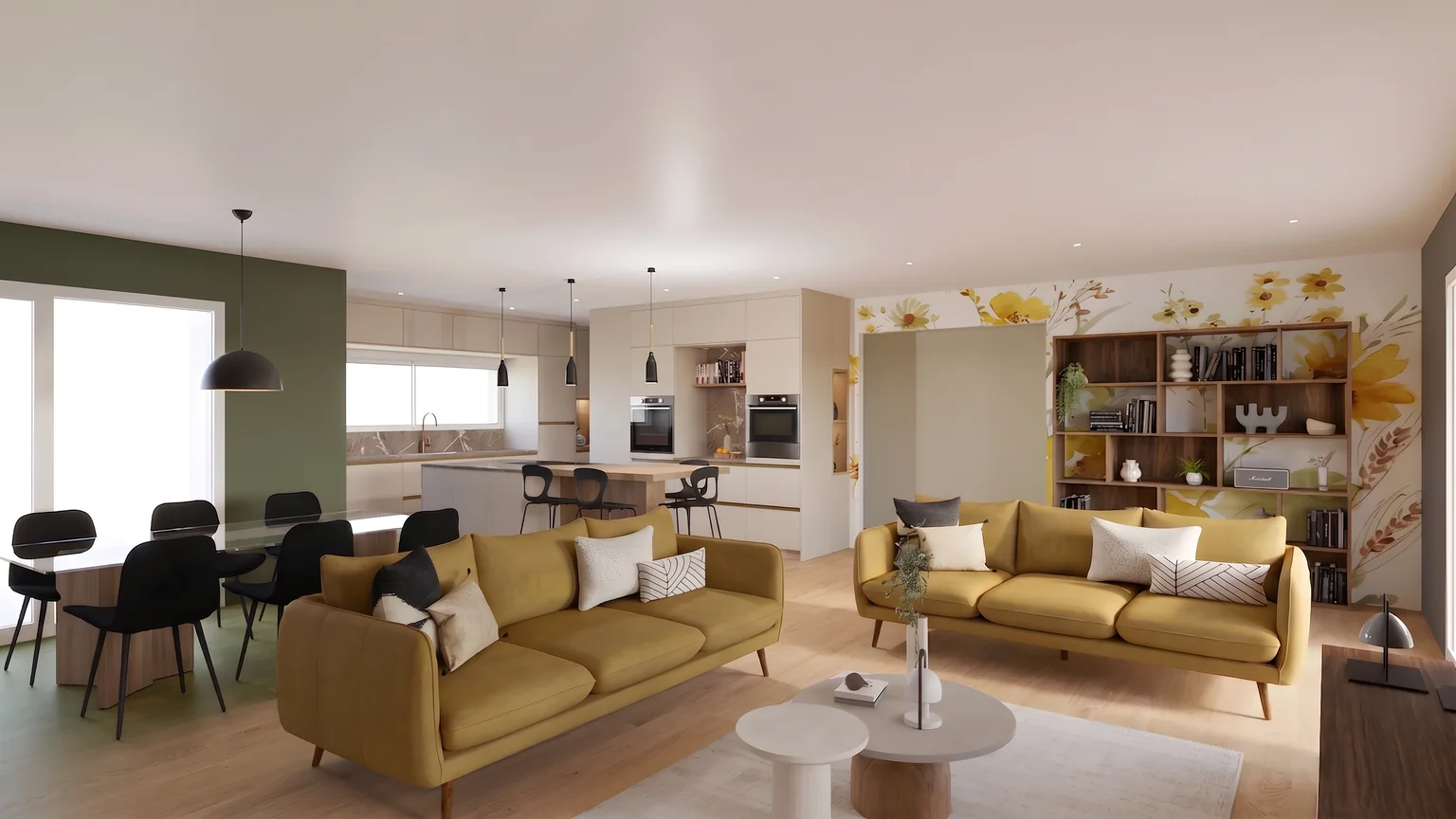 AI image editingFloor, wall, worktop, front, furniture: the designated zone changes on the render or on the photo, without reopening the original software.
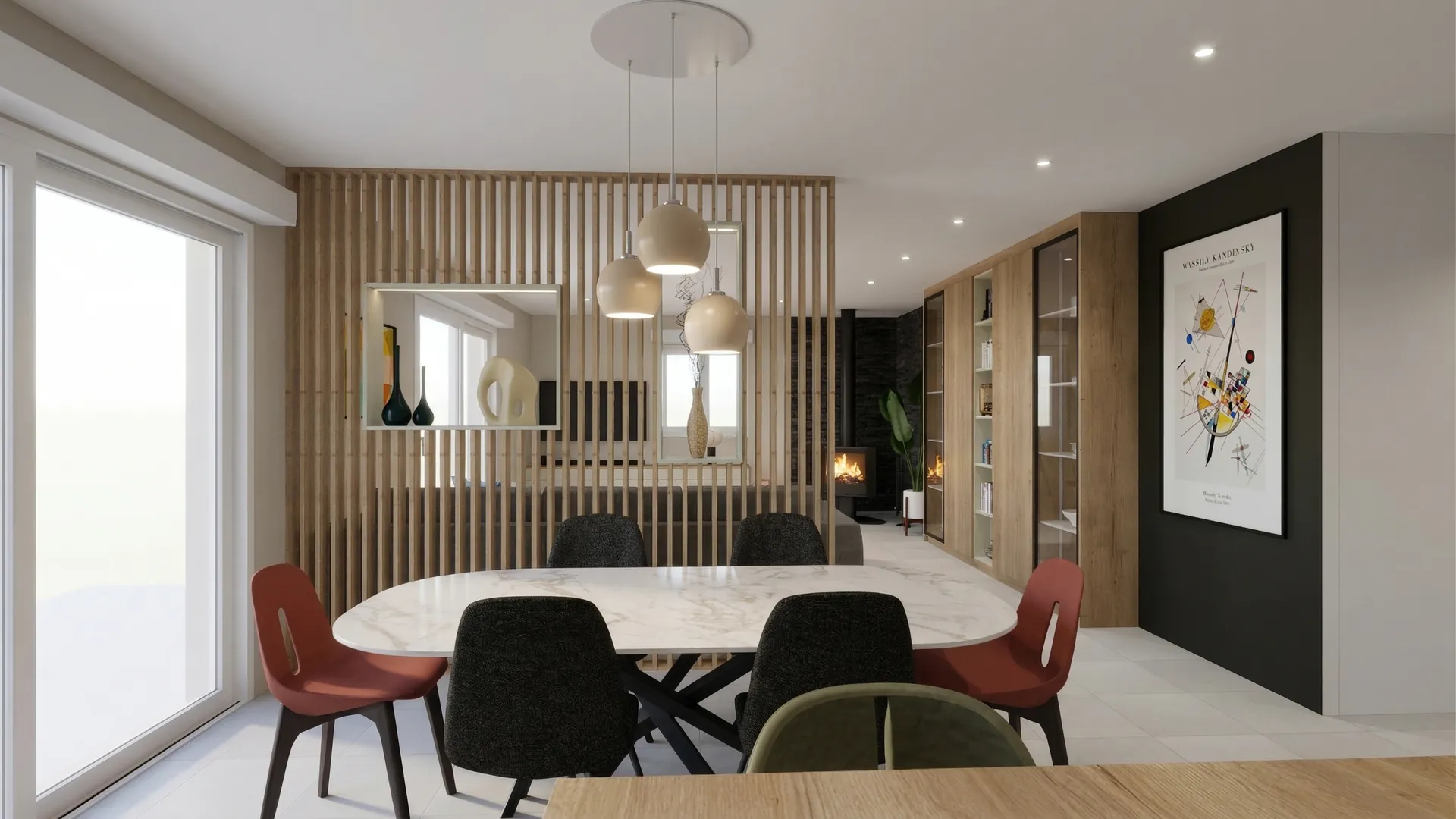 Client presentationA secure link in your colours, with before-and-after and 360° tour, readable on any screen. The client installs nothing and creates no account.
Who it is for
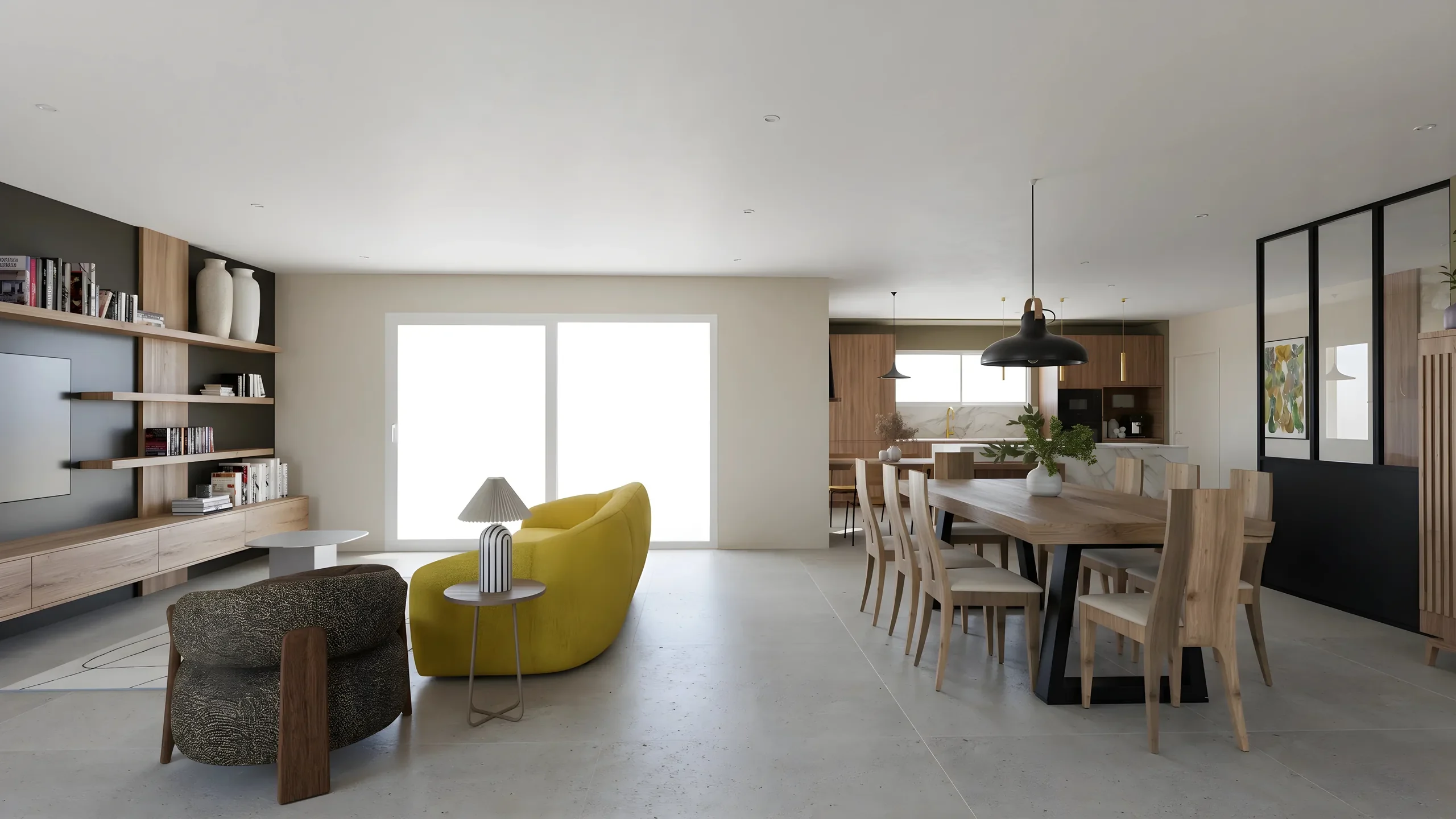 Interior ArchitectsPhotorealistic renders from your SketchUp or Revit exports, ready to present in minutes.
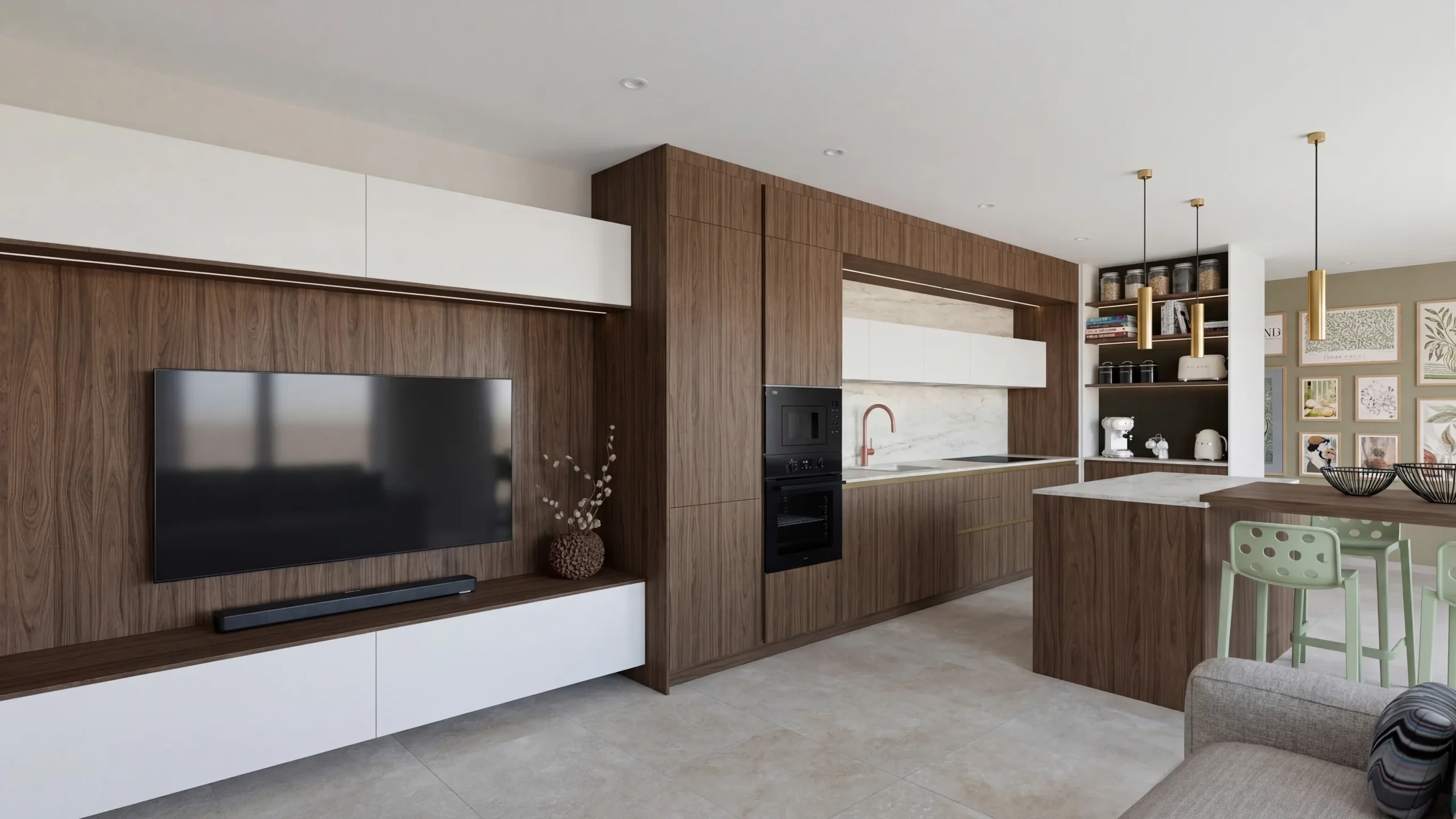 Space PlannersVisualize your office, retail and restaurant fit-outs and get them approved by your professional clients.
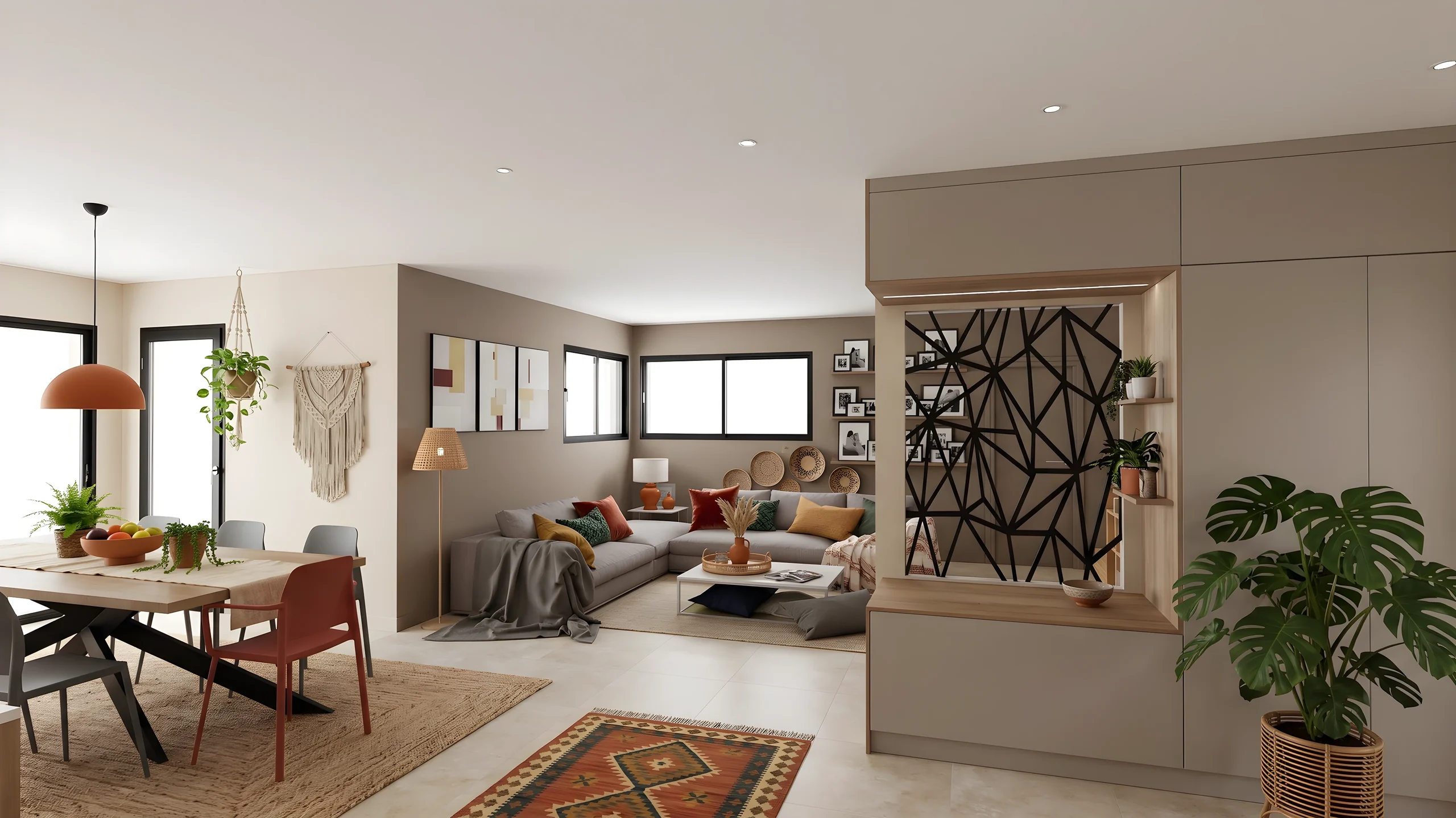 DecoratorsLet your client picture the ambiance, colors and materials before buying any furniture.
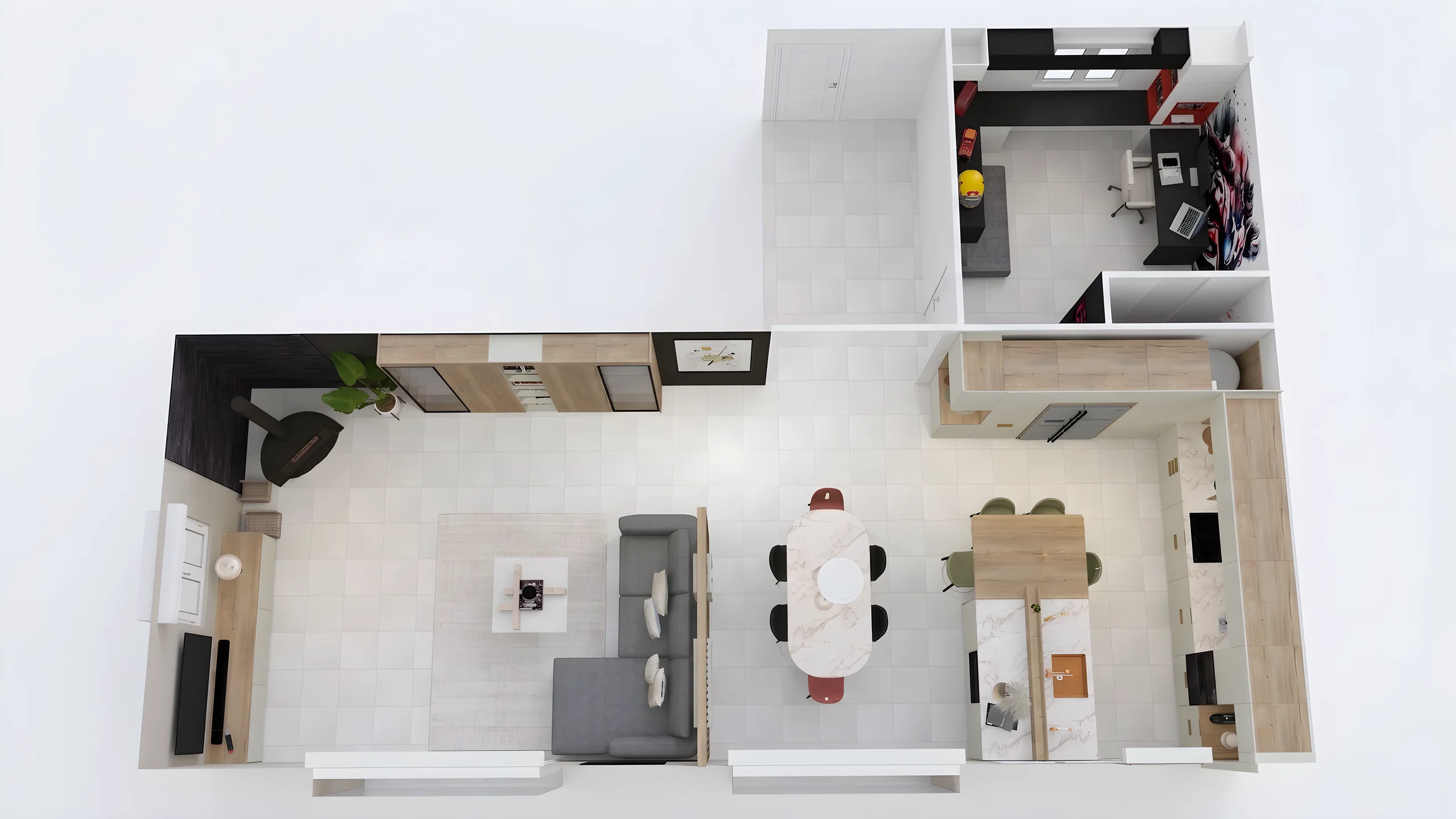 Home stagingRestyle and showcase your already-furnished listings for visuals that drive viewing requests.
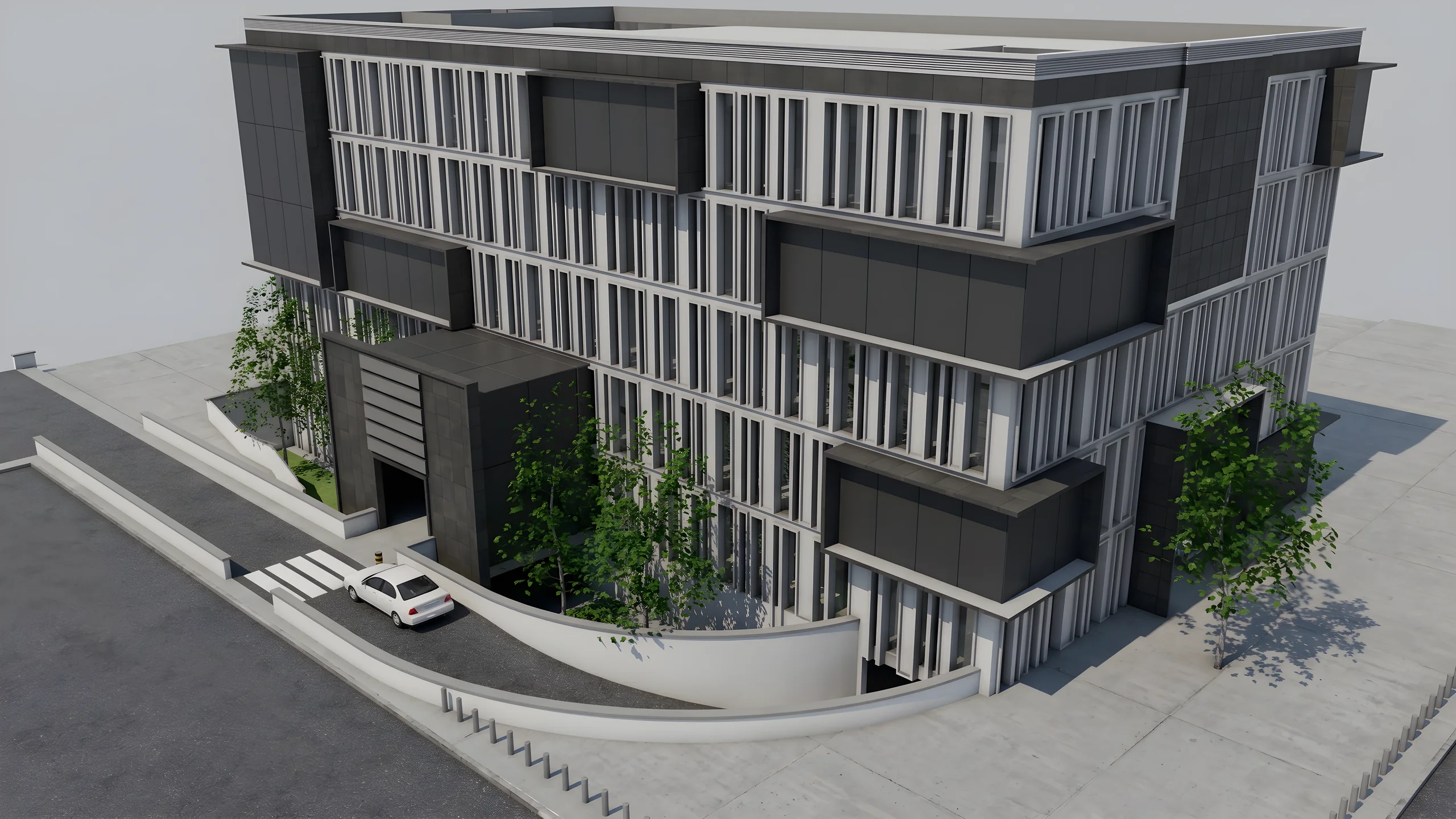 Property developersVisualize every apartment typology for off-plan sales, in minutes instead of weeks.
Read next
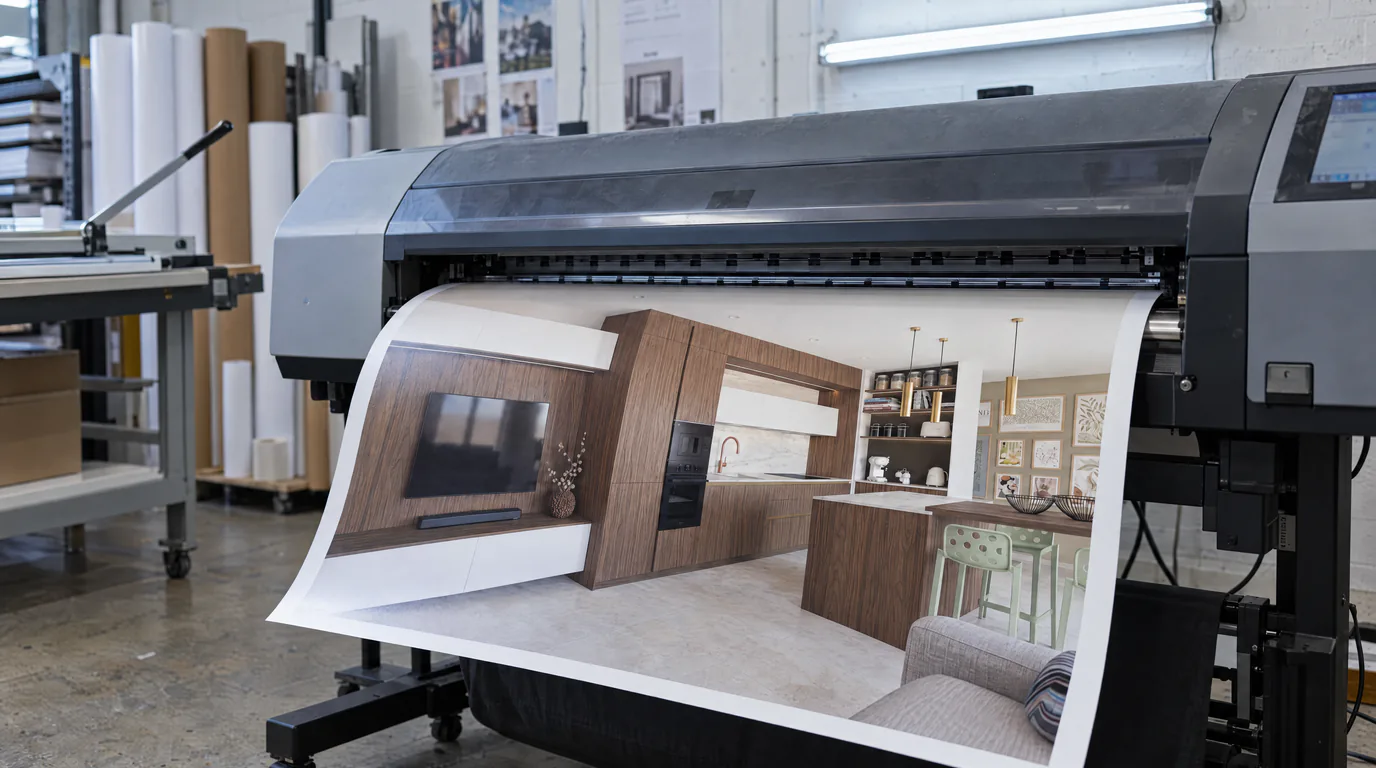 Guides
AI Photorealistic Rendering: Complete 2026 Guide
Learn how AI transforms a simple 3D export into a photorealistic image in under a minute. Complete guide with comparisons, workflow and practical tips.
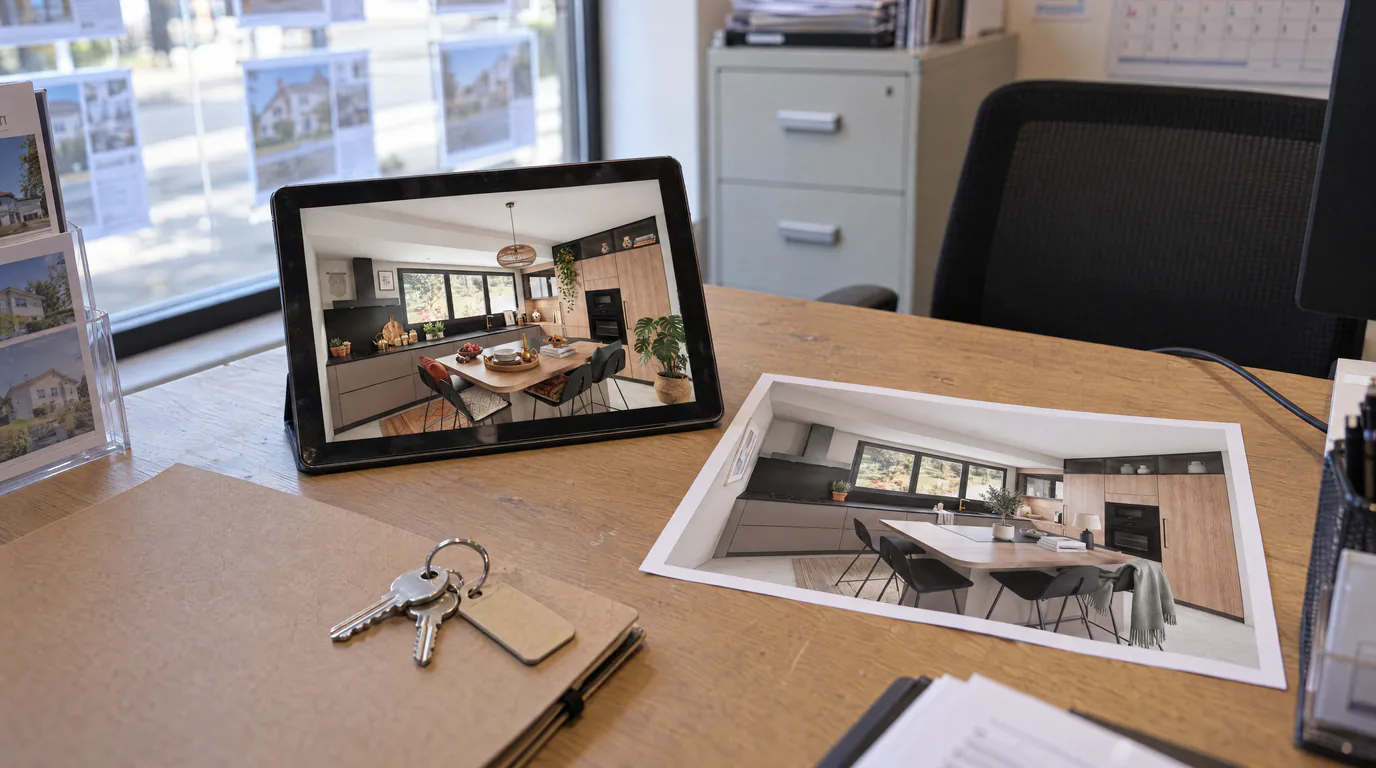 Use cases
AI Virtual Home Staging: Enhance Your Furnished Listings
An already-furnished but dated property sells slower. Restyle the mood and refresh finishes with a brush using AI rendering and editing, without touching the furniture.
 Guides
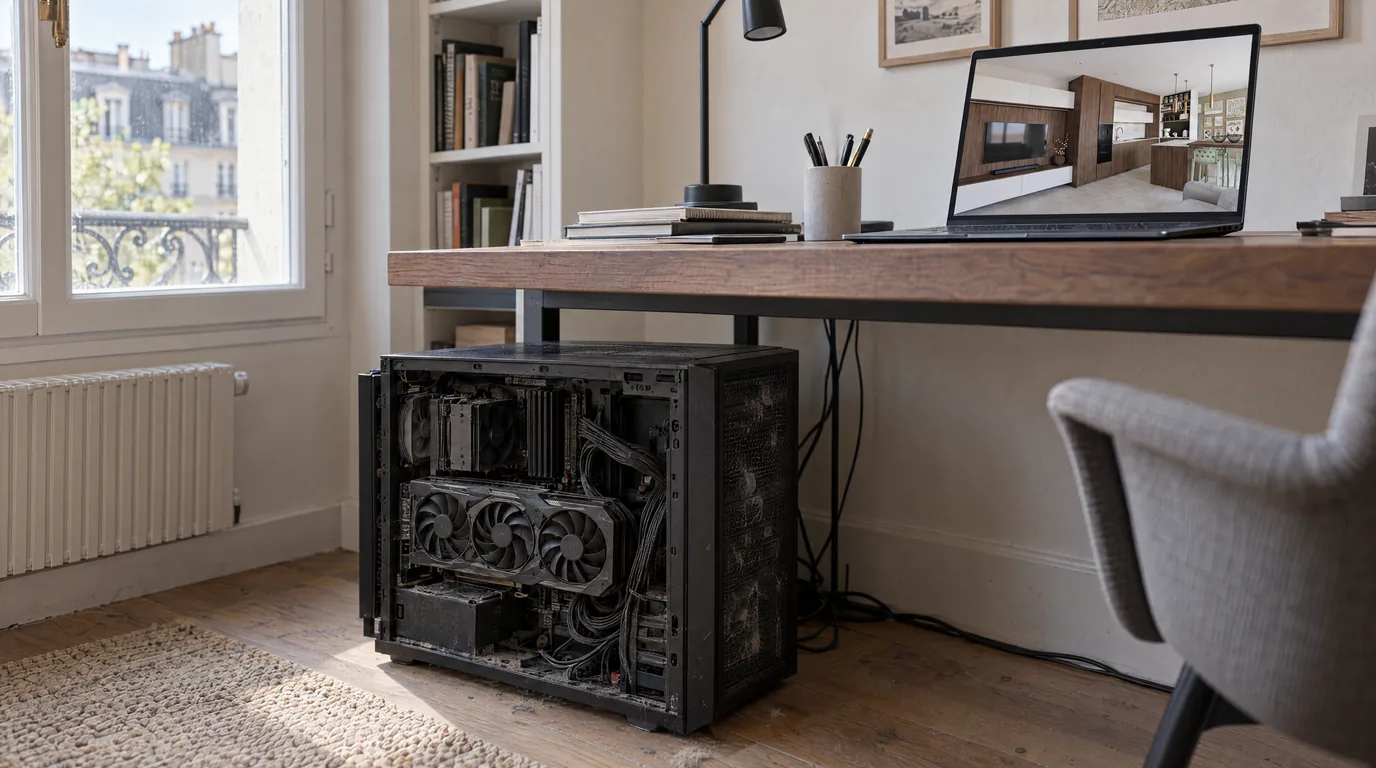
Lumion & V-Ray Alternative: AI Rendering, No GPU (2026)
License, high-end GPU and weeks of training: Lumion and V-Ray are expensive. Discover the AI alternative with no GPU that removes these barriers.
Try it on your own project.
Import an export, start a render, edit one zone, share the link.
14 days, no commitment