AI rendering from Revit: a 3D view exported as an image becomes a photorealistic render in a minute
Export the Revit 3D view as an image, drop it in: RenderThink turns it into a photorealistic render faithful to your model, in about a minute, with no graphics card and no render engine to set up.
14 days, no commitment
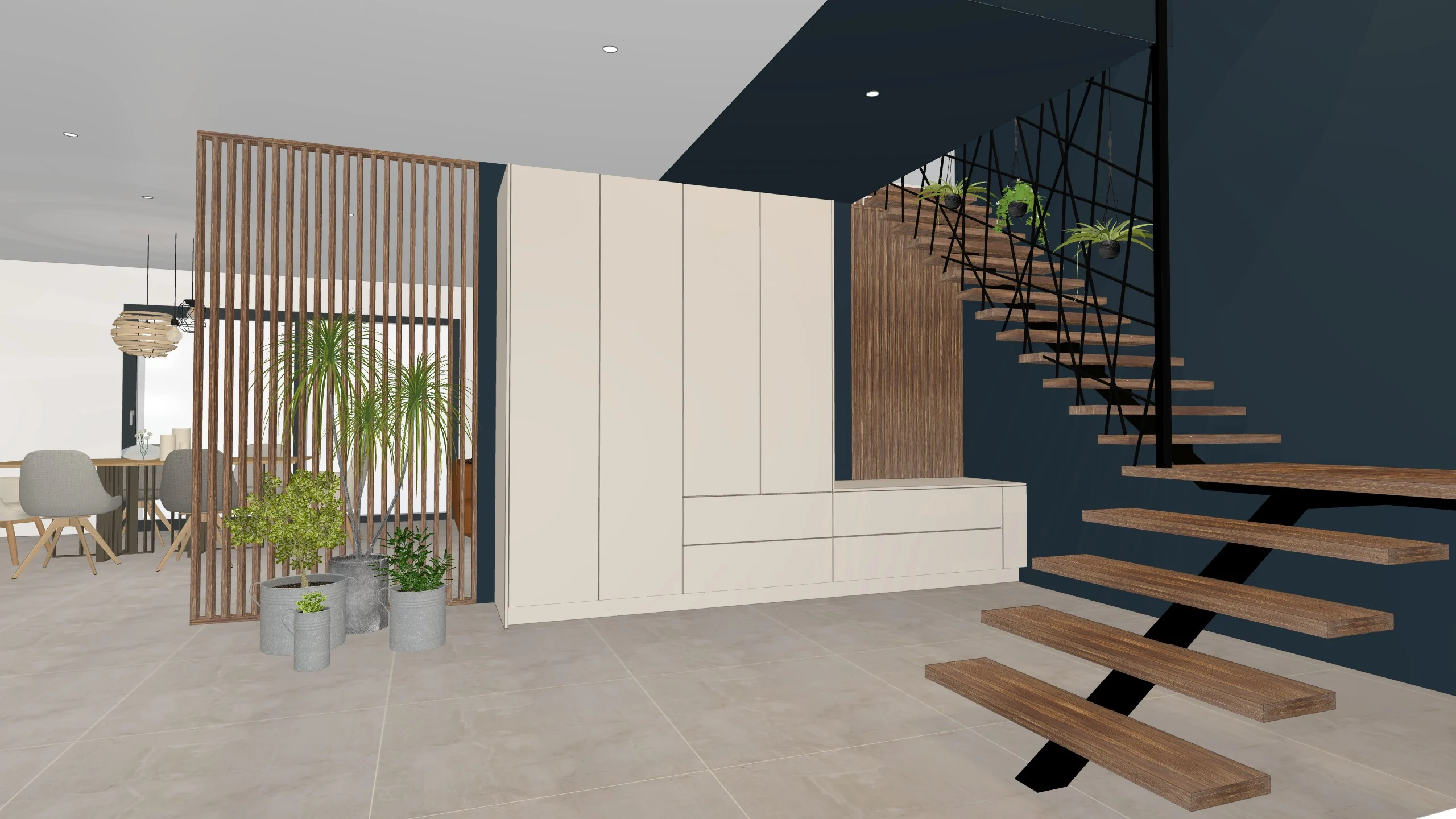
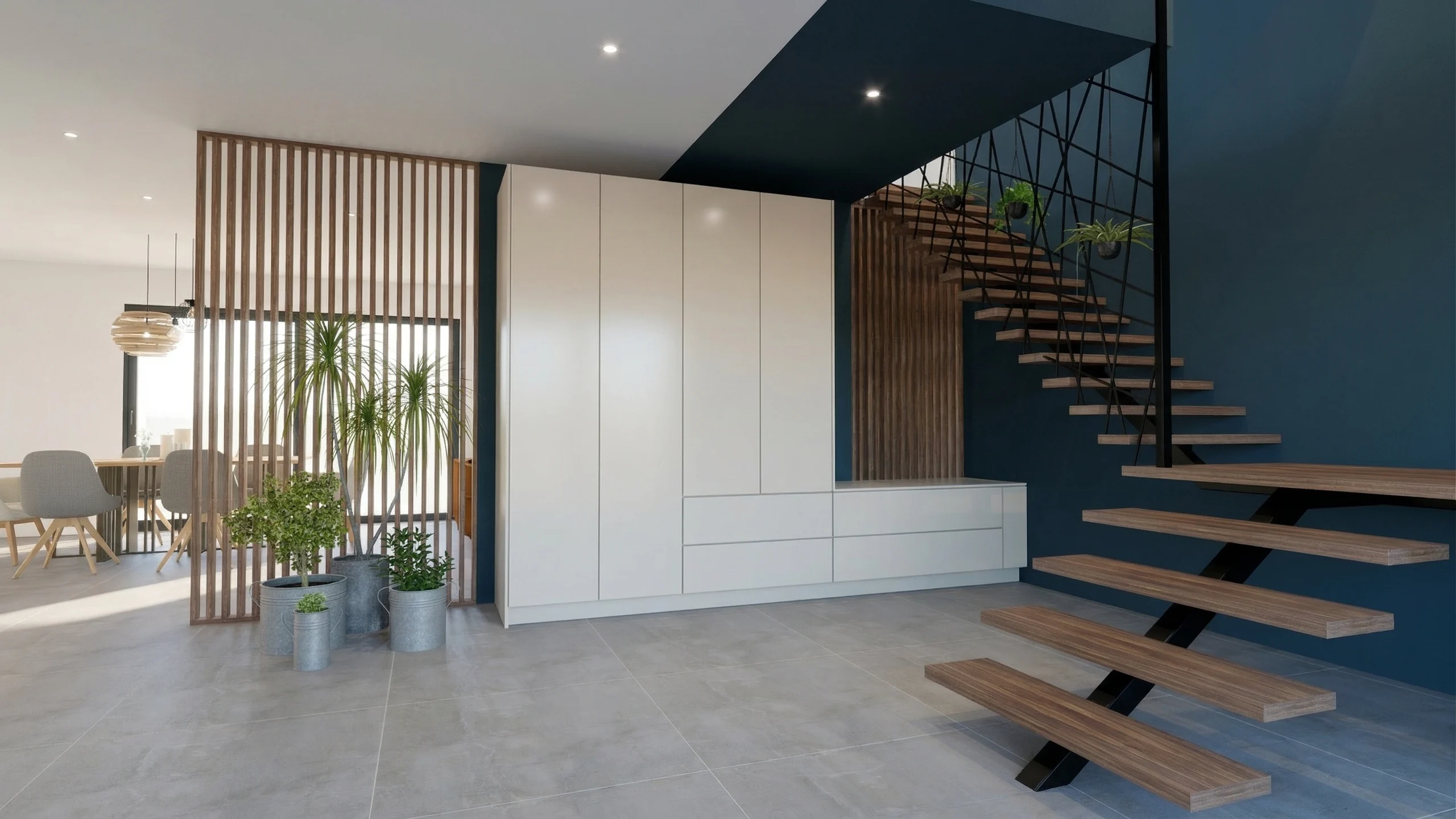
- Median 1K render, under 30 seconds
- 28 s
- Ready for large-format printing
- 8K
- Free trial, no commitment
- 14 days
Your BIM model stays exactly what it is, and the render comes out of the image.
An image exported from the 3D view, nothing else
Revit has no RenderThink plugin, and the workflow needs none: File, Export, Images and Animations, Image, as PNG at the highest resolution, then drop the file into the Studio. No .rvt file is sent, no family and no render settings are required: your BIM model stays what it is, the render comes from the image. The plugin exists for SketchUp, InSitu and KitchenDraw.
Frame the 3D view and export it as an image
One 3D view per room, camera at eye level, straight verticals, materials already applied in the model. Export as PNG, at least 3,000 px wide, with no dimensions or annotations.
Drop it in and start the render
Drag the images into the project, pick the resolution, from 1K draft to 8K, and start every view at once. Each render comes back in about a minute, the computation runs on our servers.
Show finish options on the render
Parquet, paint, tiles, unit fronts: designate the zone with the brush and change the finish or the product. The rest of the image does not move, nor does the Revit model.
Present through a link
Gather renders, before-and-after comparisons and per-unit options in a presentation shared by secure link, with a password and expiry if you wish. The client opens it on any screen, without an account.
What you do from Revit
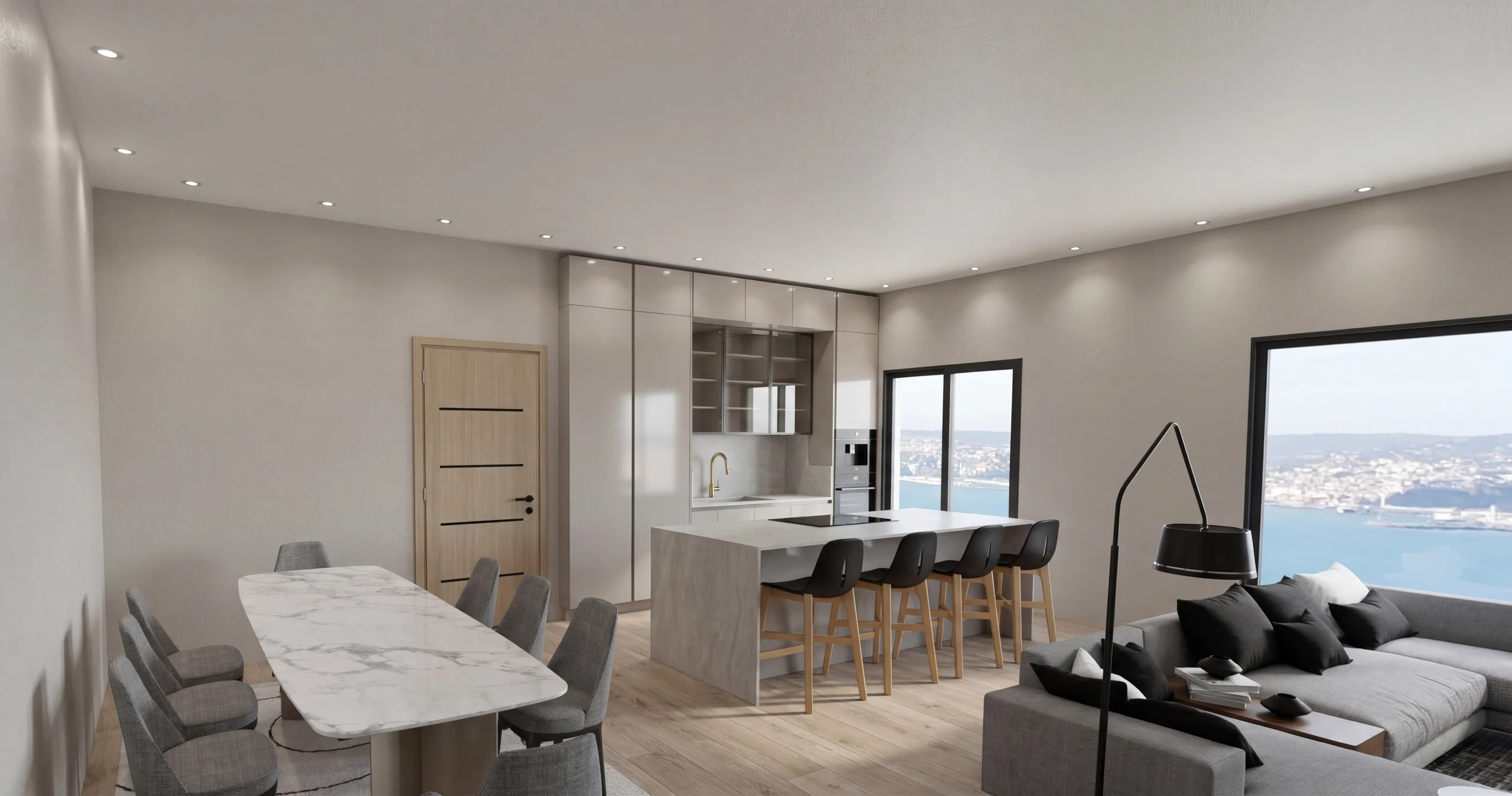 Photorealistic 3D renderingThe Revit view becomes a photorealistic image, natural light and computed materials, up to 8K for the brochure. Every unit type of a development starts as a batch.
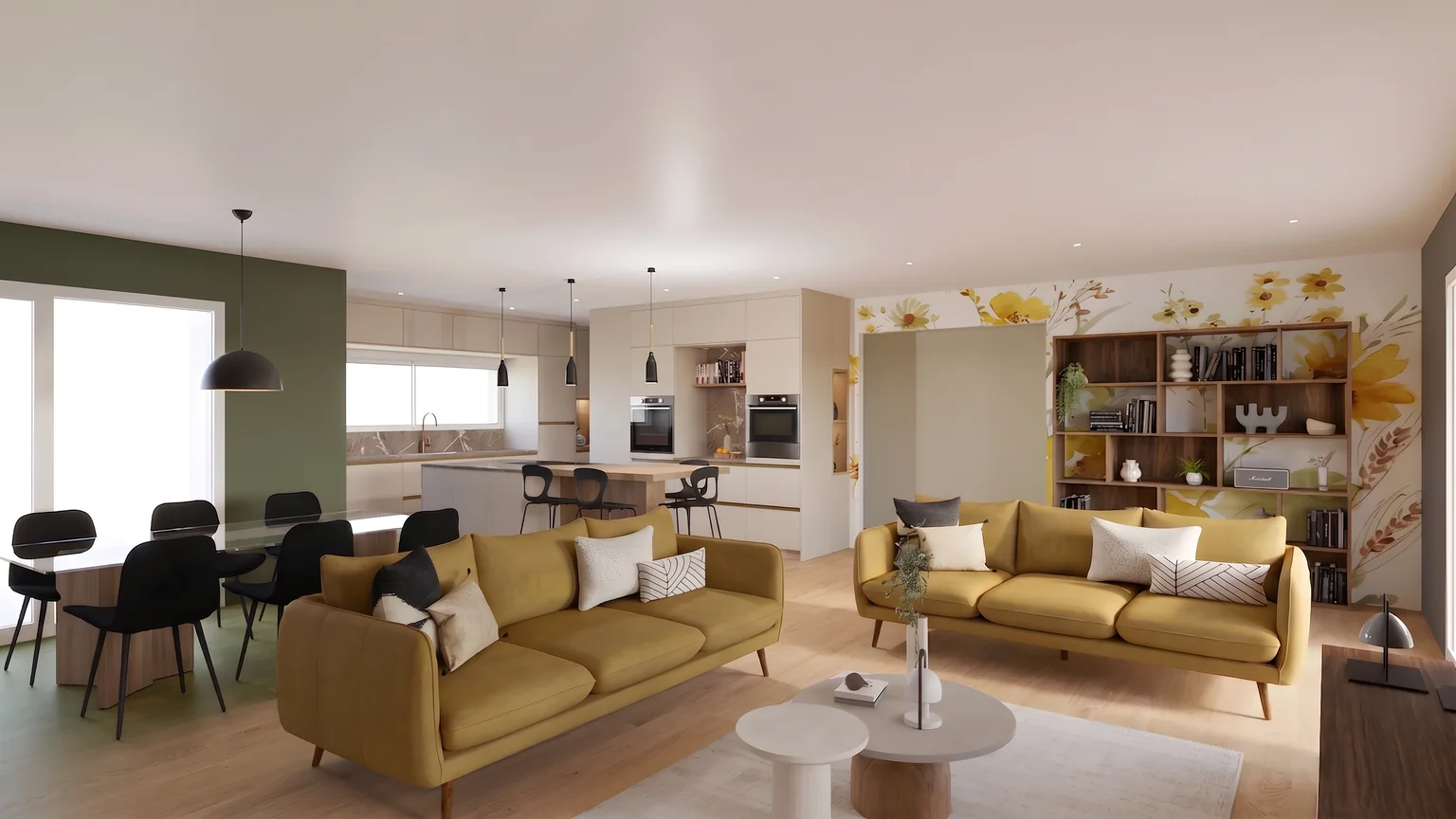 Finish options with the brushFloor, paint, tiles, fronts: each option shows on the render, without reopening the model or starting a full render again.
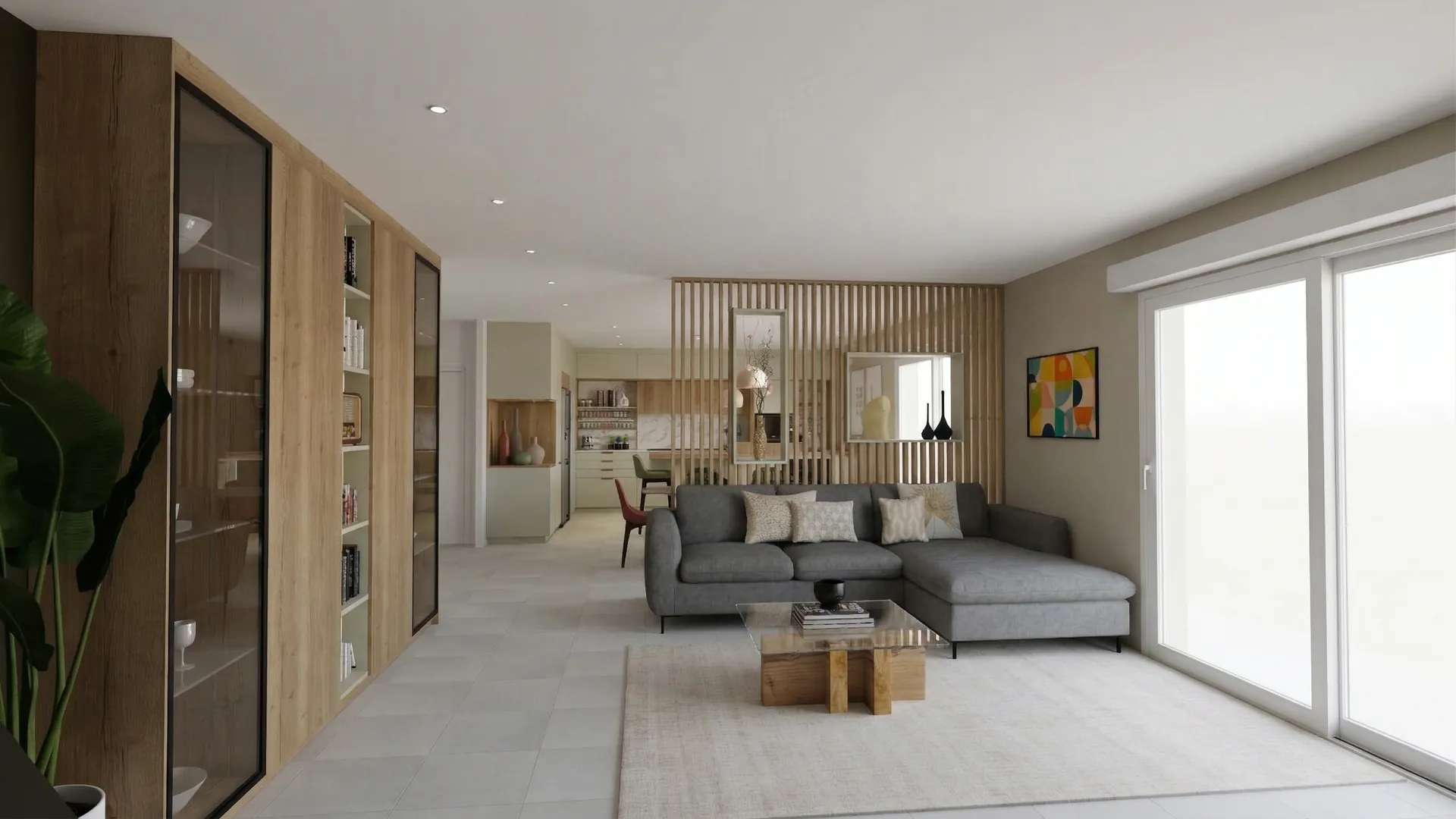 Sales file by linkRenders, plans and finish options gathered in a presentation in your colours, shared by secure link, readable on any screen without an account.
Read next
 Use cases
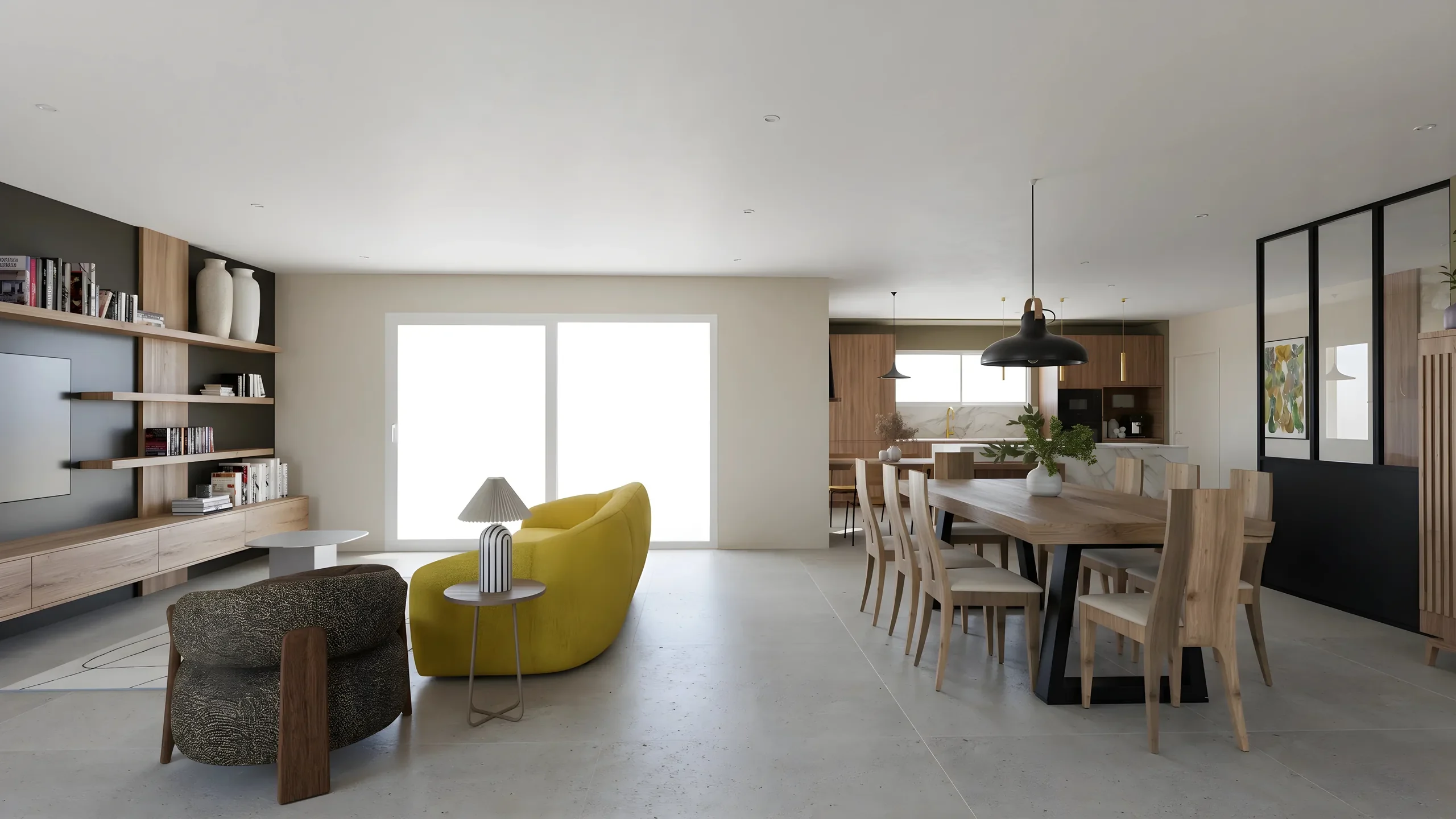
Real Estate Developers: AI Renders for Off-Plan Sales
Every apartment type visualized in minutes instead of weeks. AI replaces expensive 3D agencies for off-plan property sales.
 Use cases
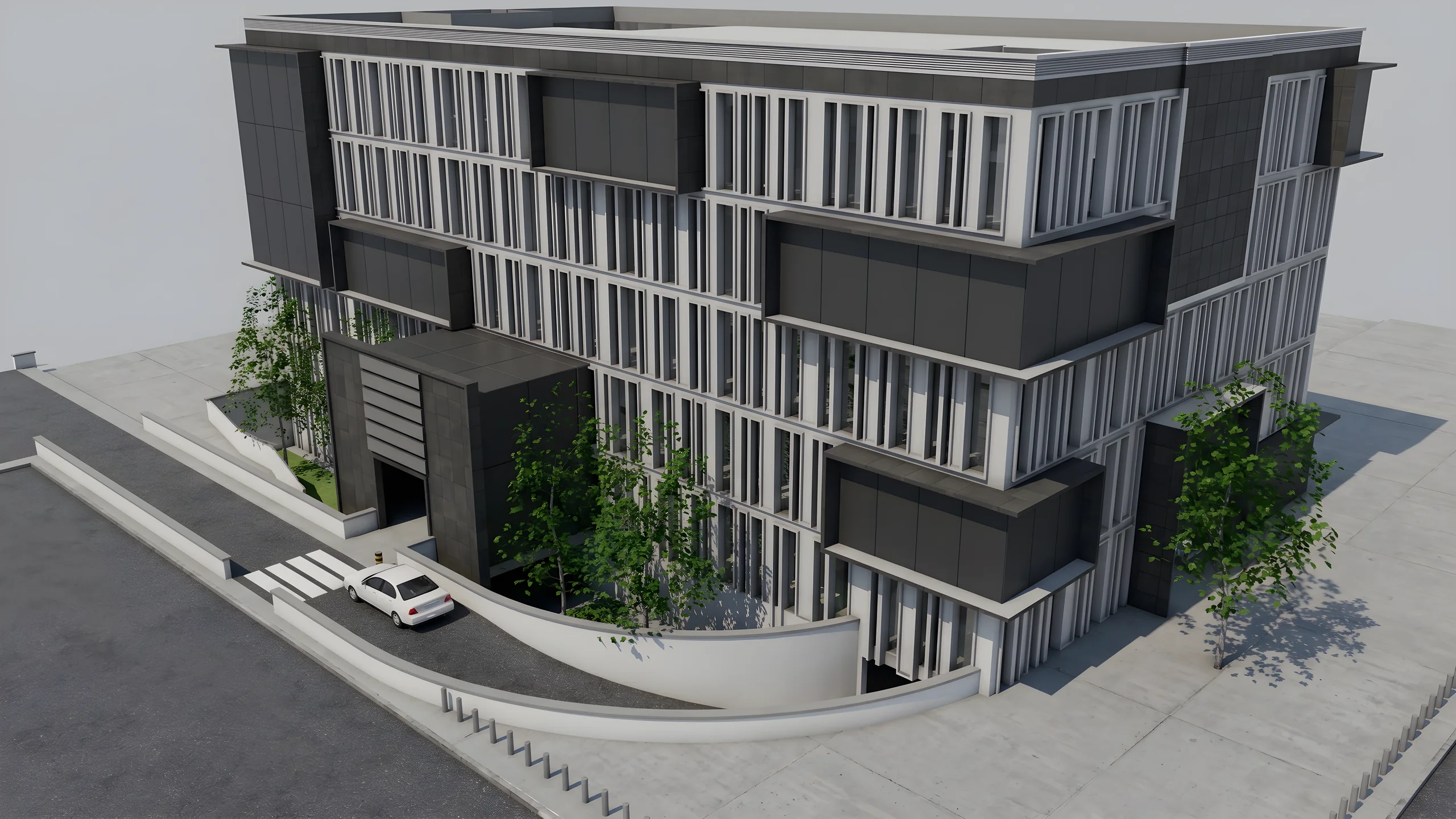
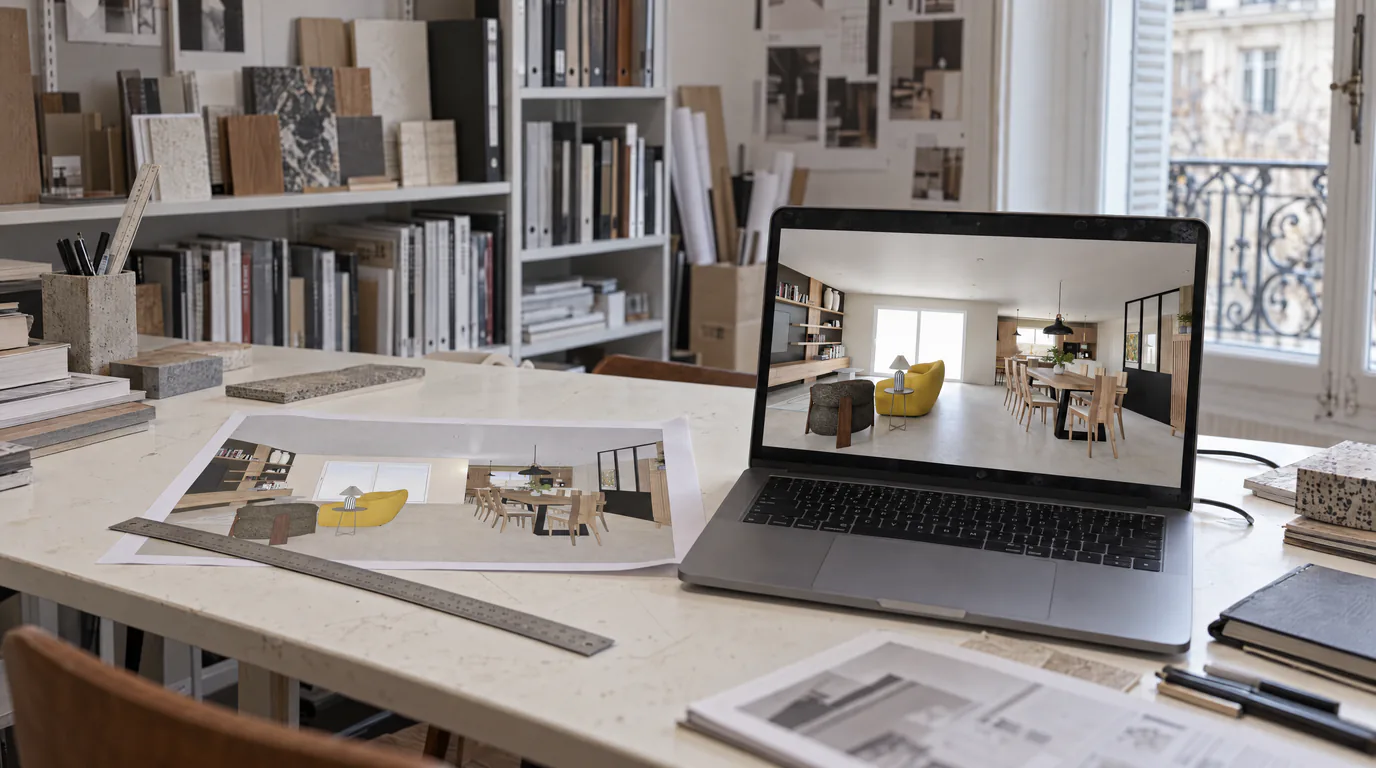
Interior Architects: AI Photorealistic Renders in Under 1 Min
Transform your SketchUp, Revit or AutoCAD exports into photorealistic renders without GPU or training. Present same-day visuals.
 Guides
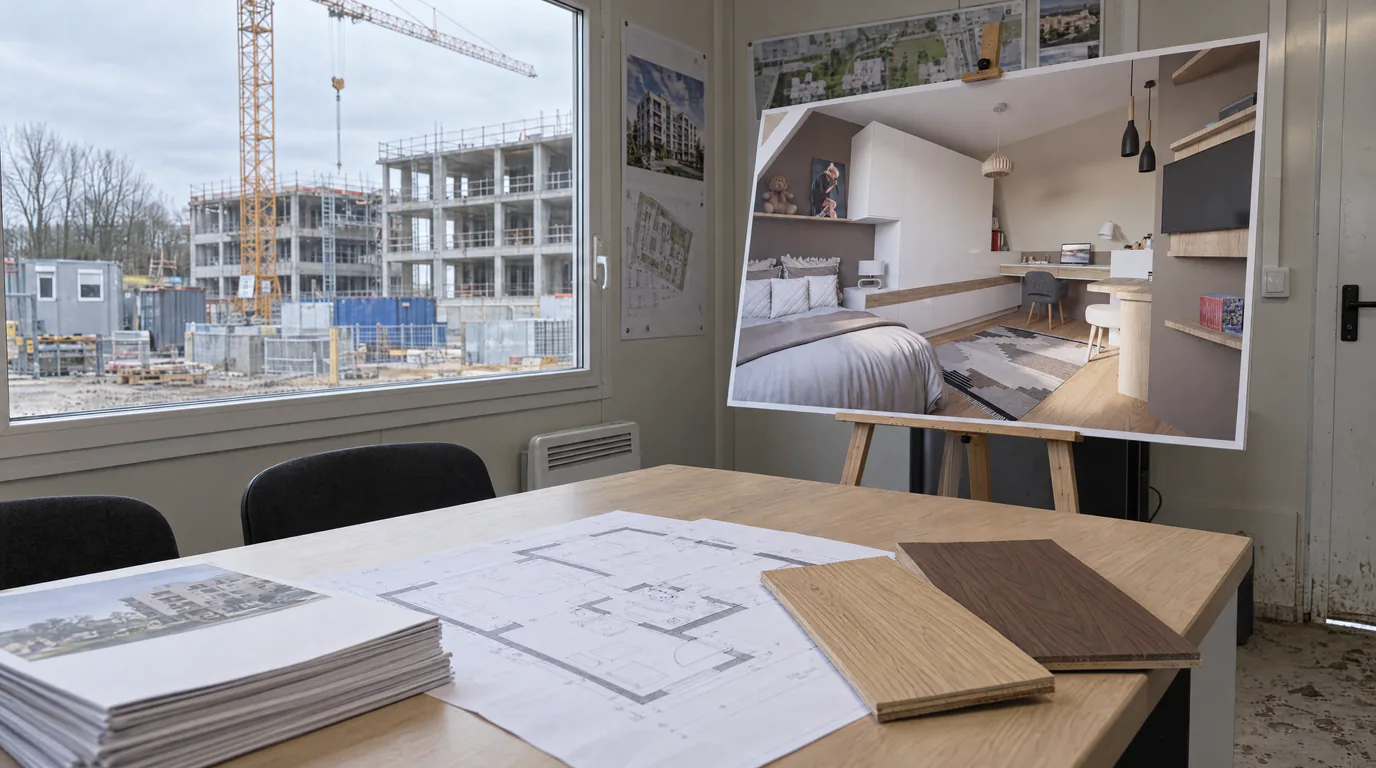
Lumion & V-Ray Alternative: AI Rendering, No GPU (2026)
License, high-end GPU and weeks of training: Lumion and V-Ray are expensive. Discover the AI alternative with no GPU that removes these barriers.
Try it on your own project.
Import an export, start a render, edit one zone, share the link.
14 days, no commitment