AI image editing: change materials, colors and products with a brush, no 3D round-trip
In the Studio, you paint the area to modify on the render with a brush, pick the new material, color or a real product from the catalog, and RenderThink applies the change while respecting perspective, shadows and lighting. In a matter of seconds, without touching the rest of the image.
14 days, no commitment
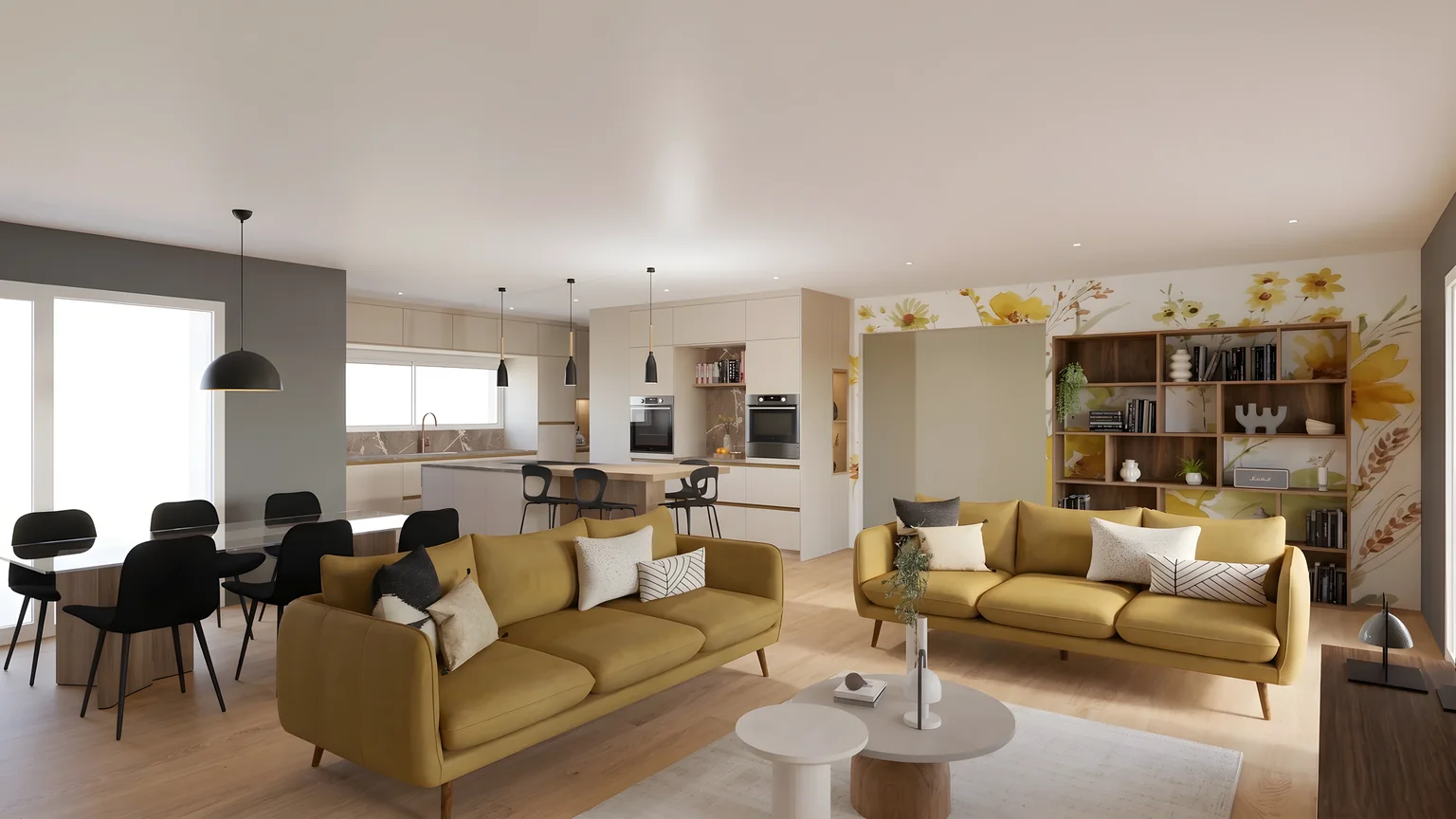
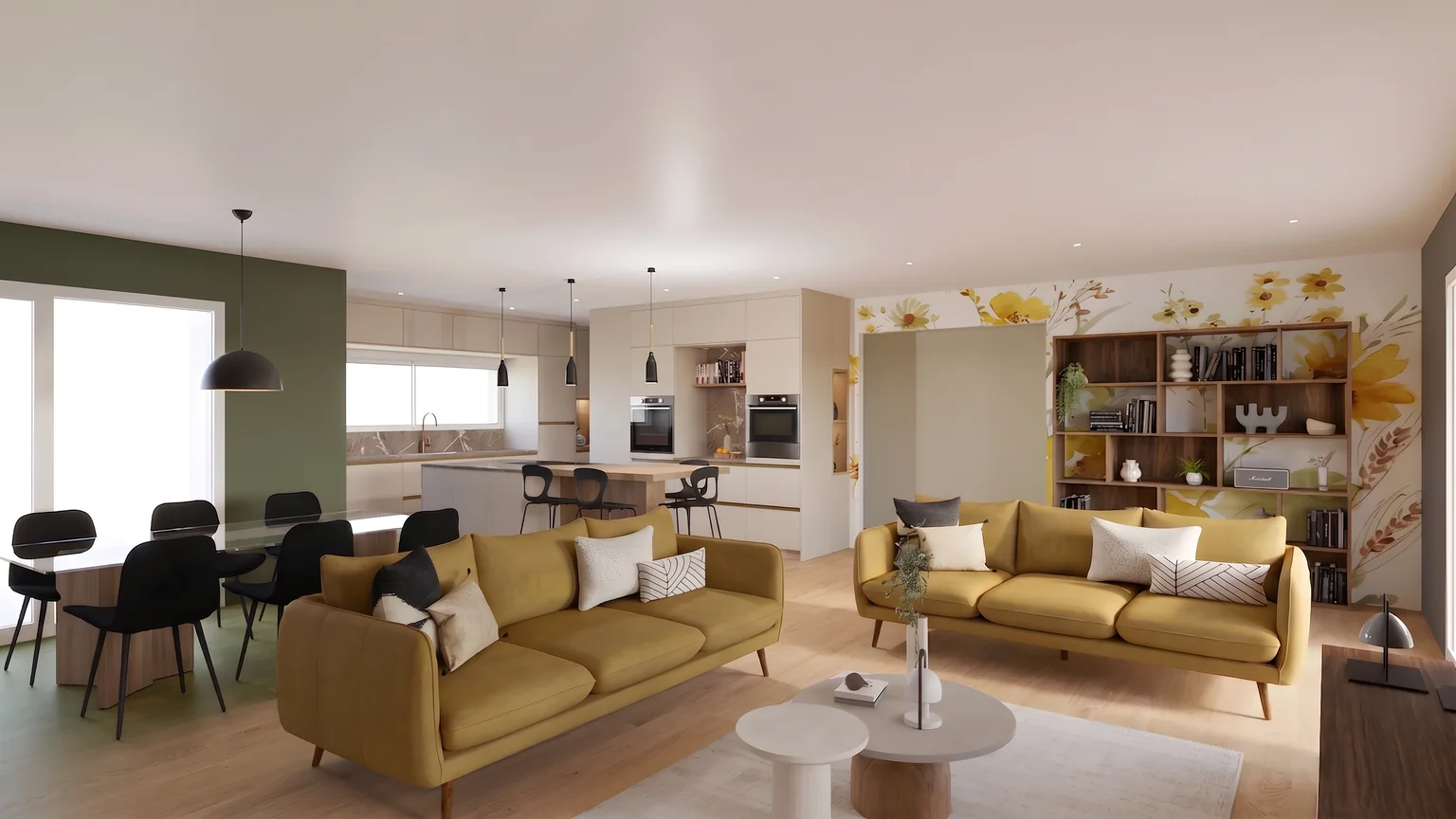
The client asks for another material. The variant lands during the meeting.
01Modify
Another shade, on the designated zone only.
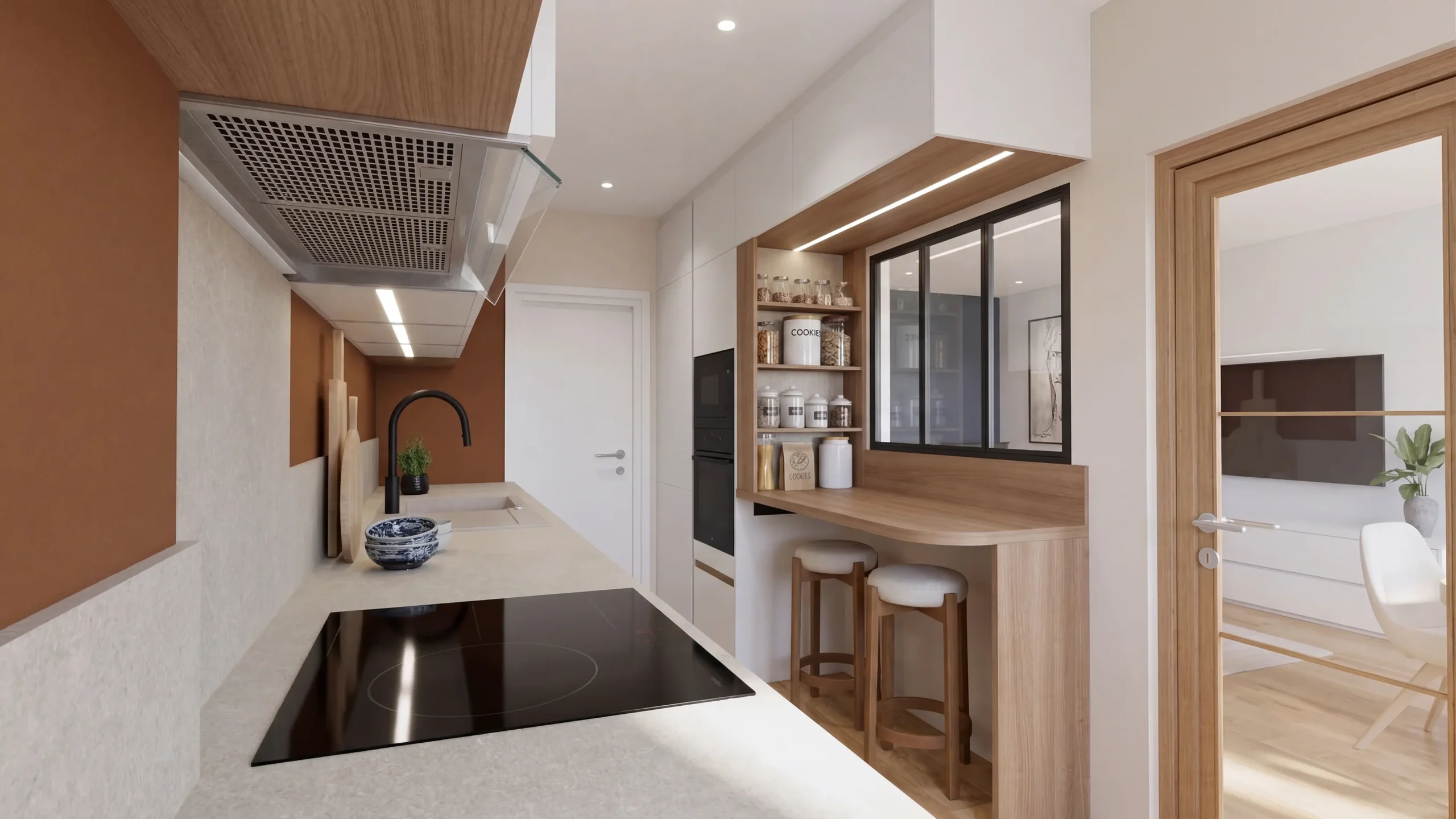
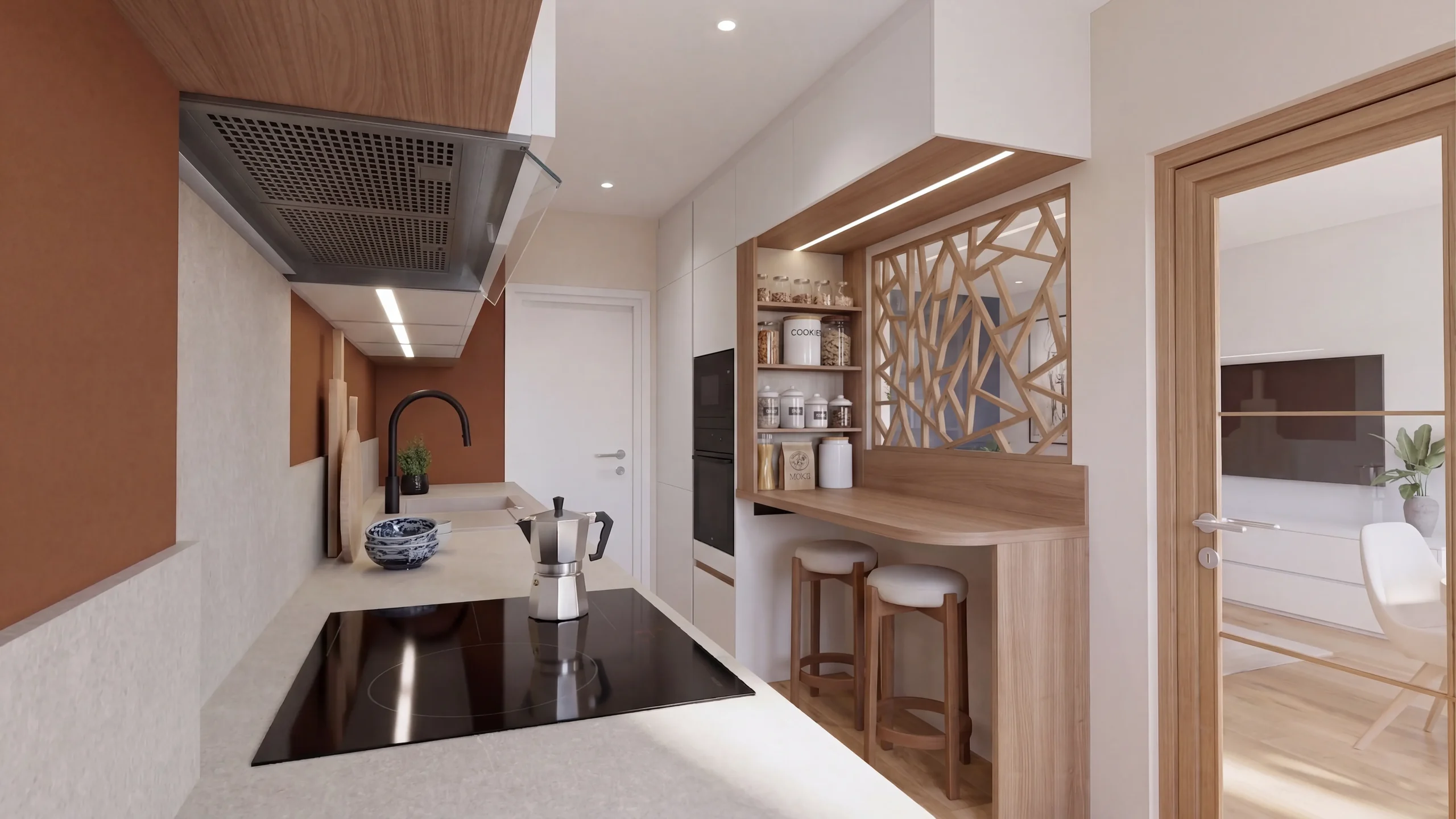
02Replace
The new one takes its place, at scale.
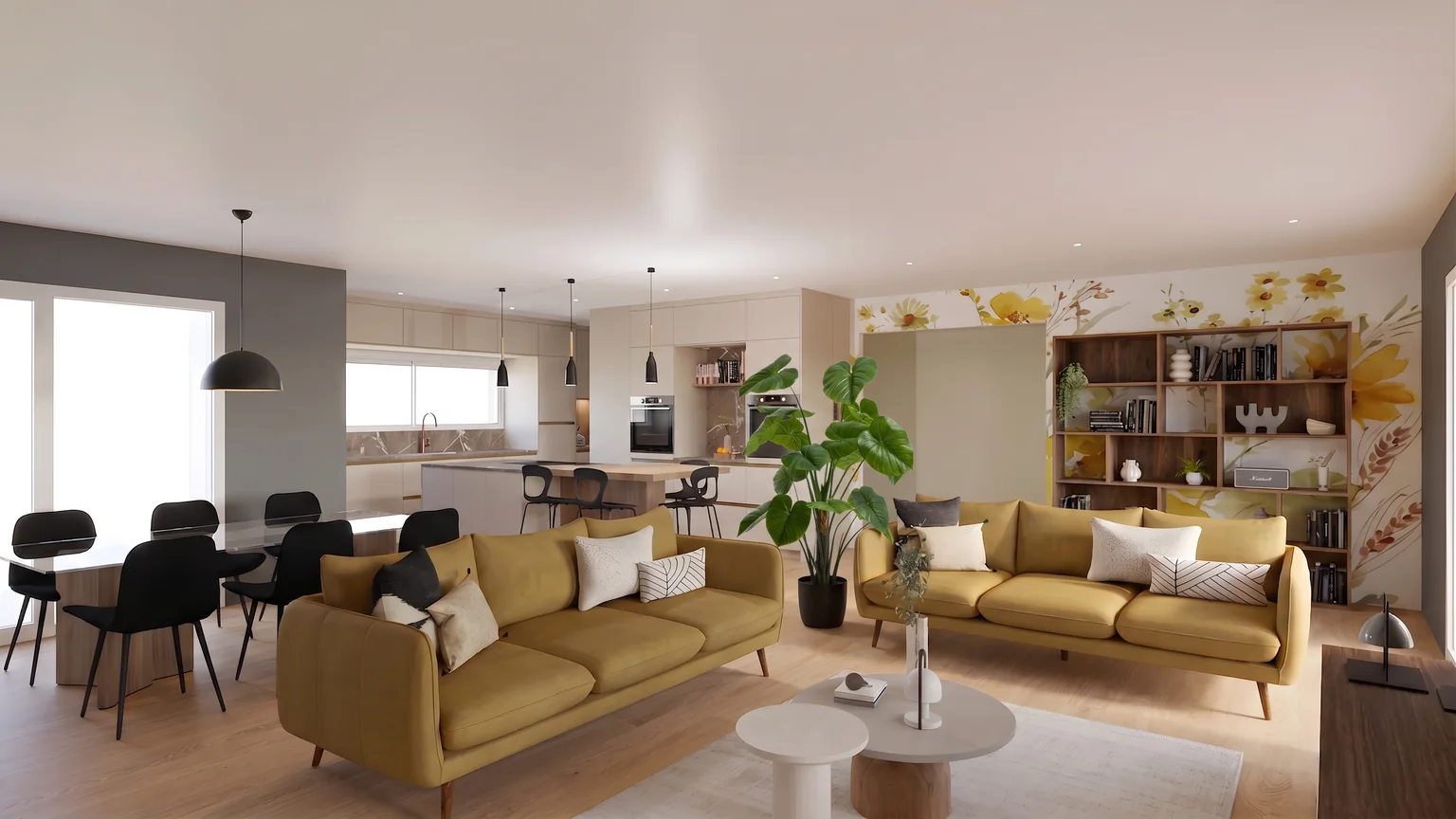
03Add
A catalogue product, placed at its real size.
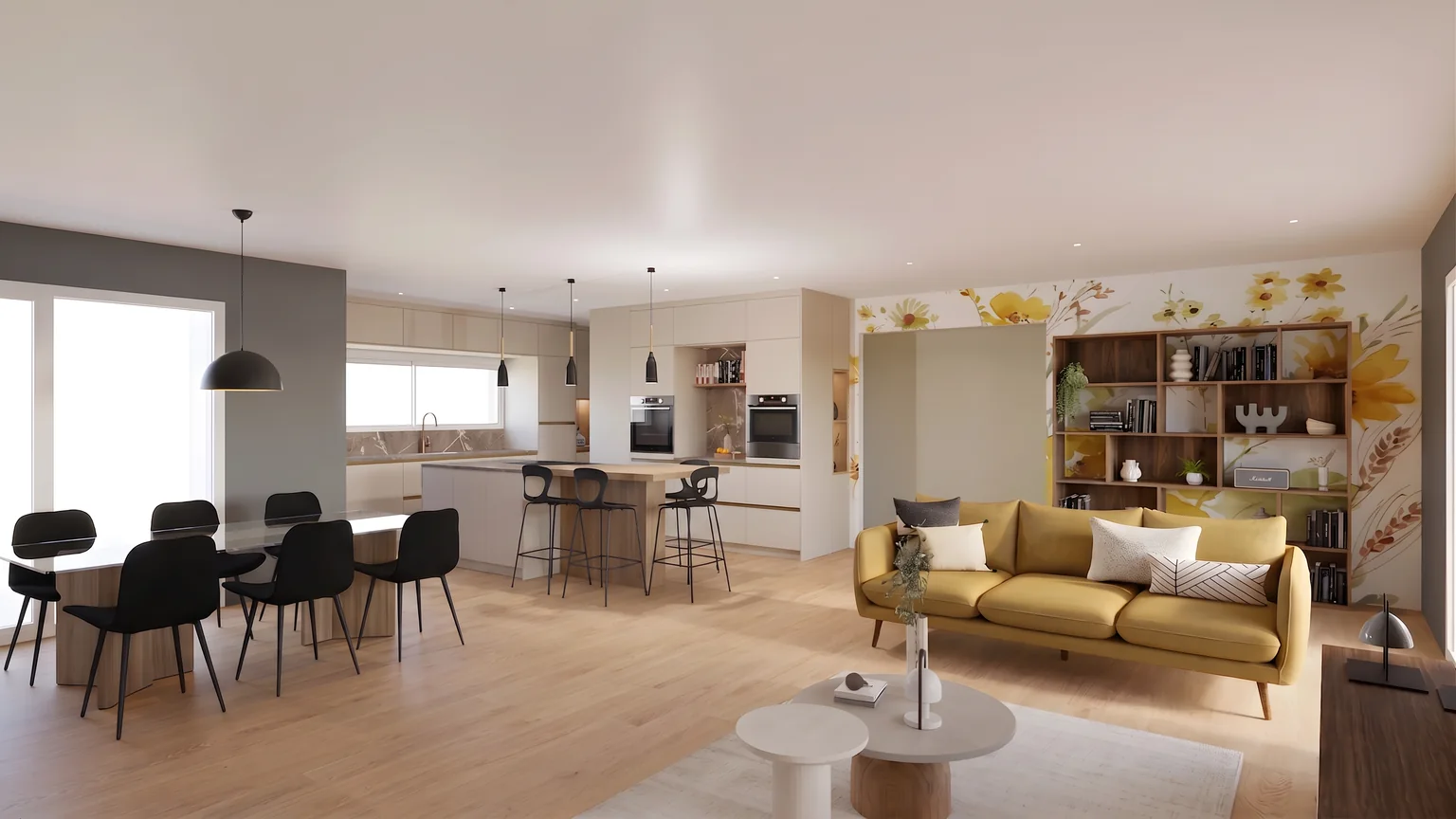
04Remove
The floor is rebuilt behind it.
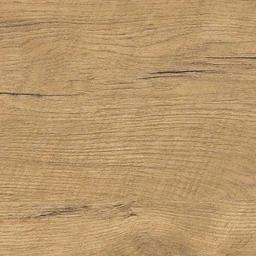

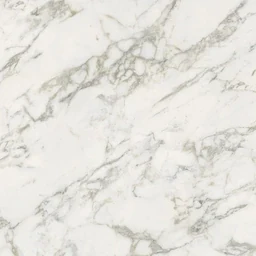





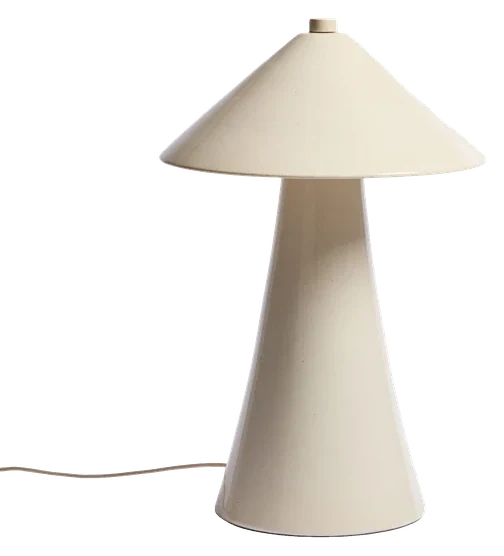
The editing that replaces 3D round-trips
Material library
You point, RenderThink applies
You mark the exact area to modify (floor, wall, furniture) with the brush, the eraser or the polygon tool, then pick the finish: RenderThink applies it right there, as if the material had always been there. On desktop, smart click selects a whole object in a single click.
 CatalogueMonstera
Real products, not approximations
Design software often ships a limited catalog. On the area, drop a material, a texture, a real product from our catalog or your own visual.
The rest of the image untouched
Only the painted area changes. The perspective, shadows and lighting of the original render are preserved to the pixel.
Several variants live
Compare hardwood, polished concrete or marble side by side during the meeting, in the time it takes to paint a new one.
In a matter of seconds
Each variant appears in a matter of seconds, instead of hours of re-rendering.
No 3D round-trip
You work directly on the render: no need to go back to SketchUp, Revit or your design software.
How it works
Start from your render
Open an existing render directly in the Studio.
One layer per change
Pick the action (modify, remove, add or replace), mark the area with the brush, smart click or polygon, then choose the color, texture or object to place.
RenderThink applies the change
The result is regenerated without going back to the 3D model, keeping the rest of the image intact.
Who it is for
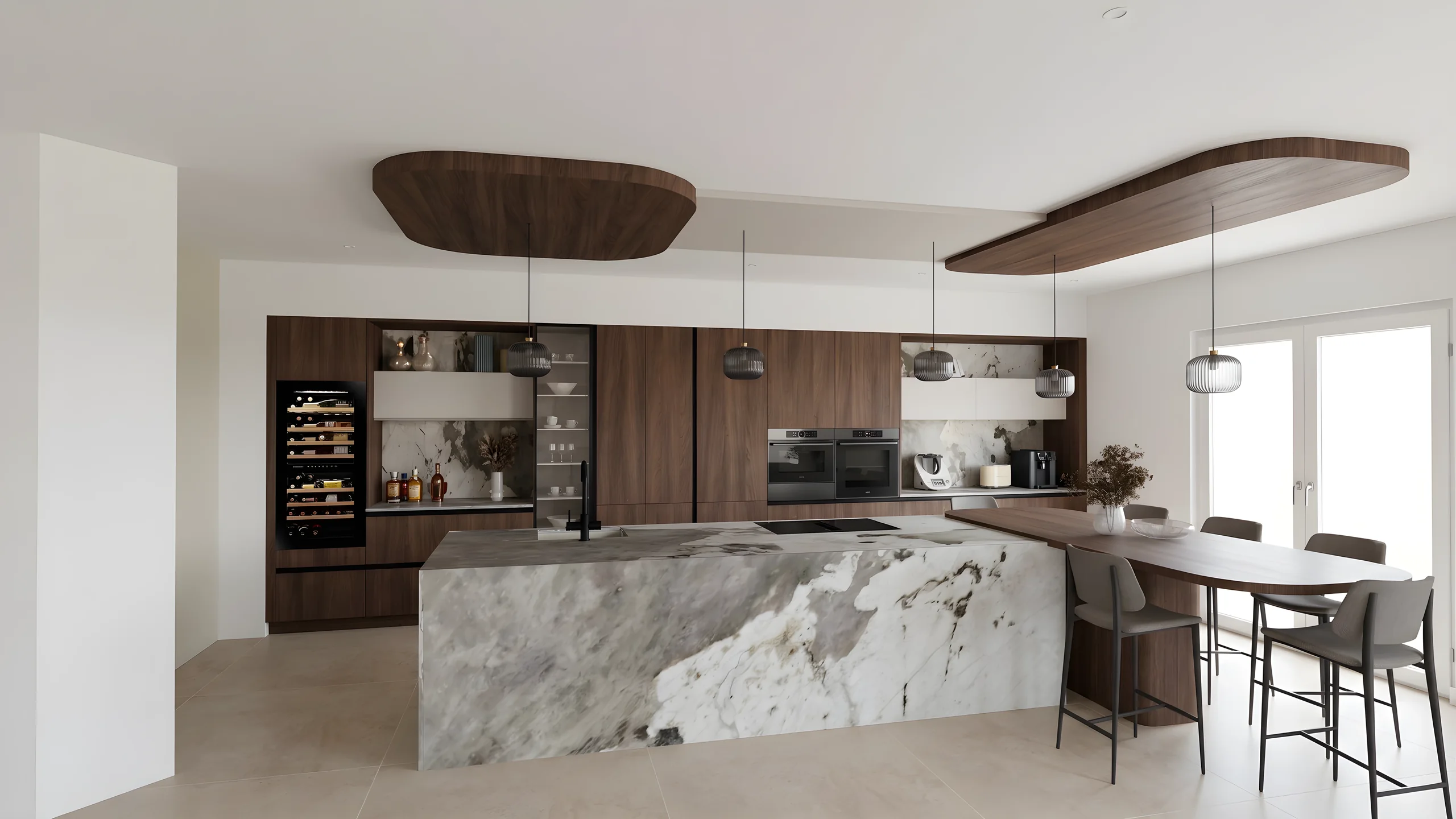 Kitchen designersTurn your Winner and InSitu exports into photorealistic renders and present them in the showroom via a secure link.
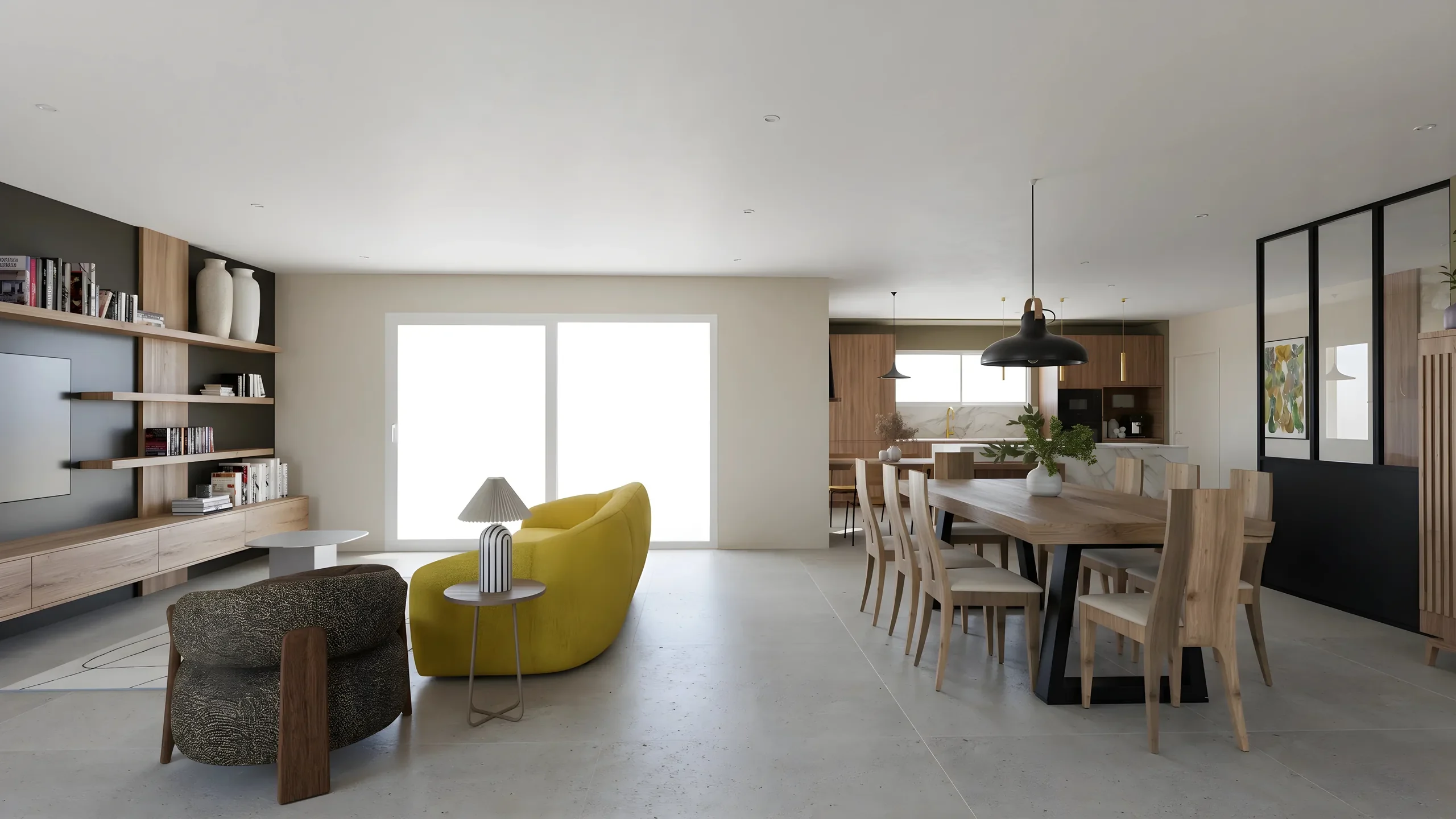 Interior ArchitectsPhotorealistic renders from your SketchUp or Revit exports, ready to present in minutes.
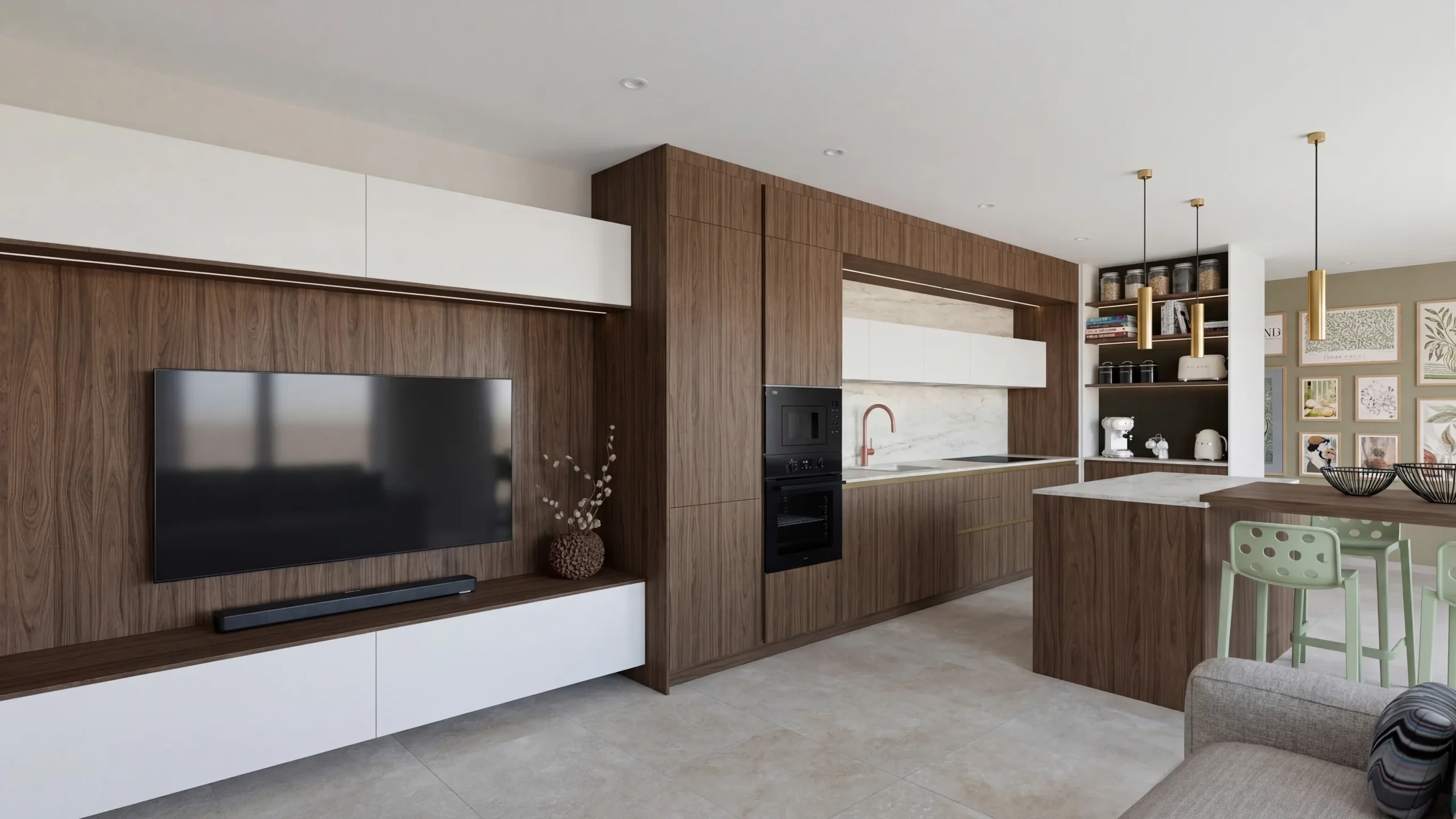 Space PlannersVisualize your office, retail and restaurant fit-outs and get them approved by your professional clients.
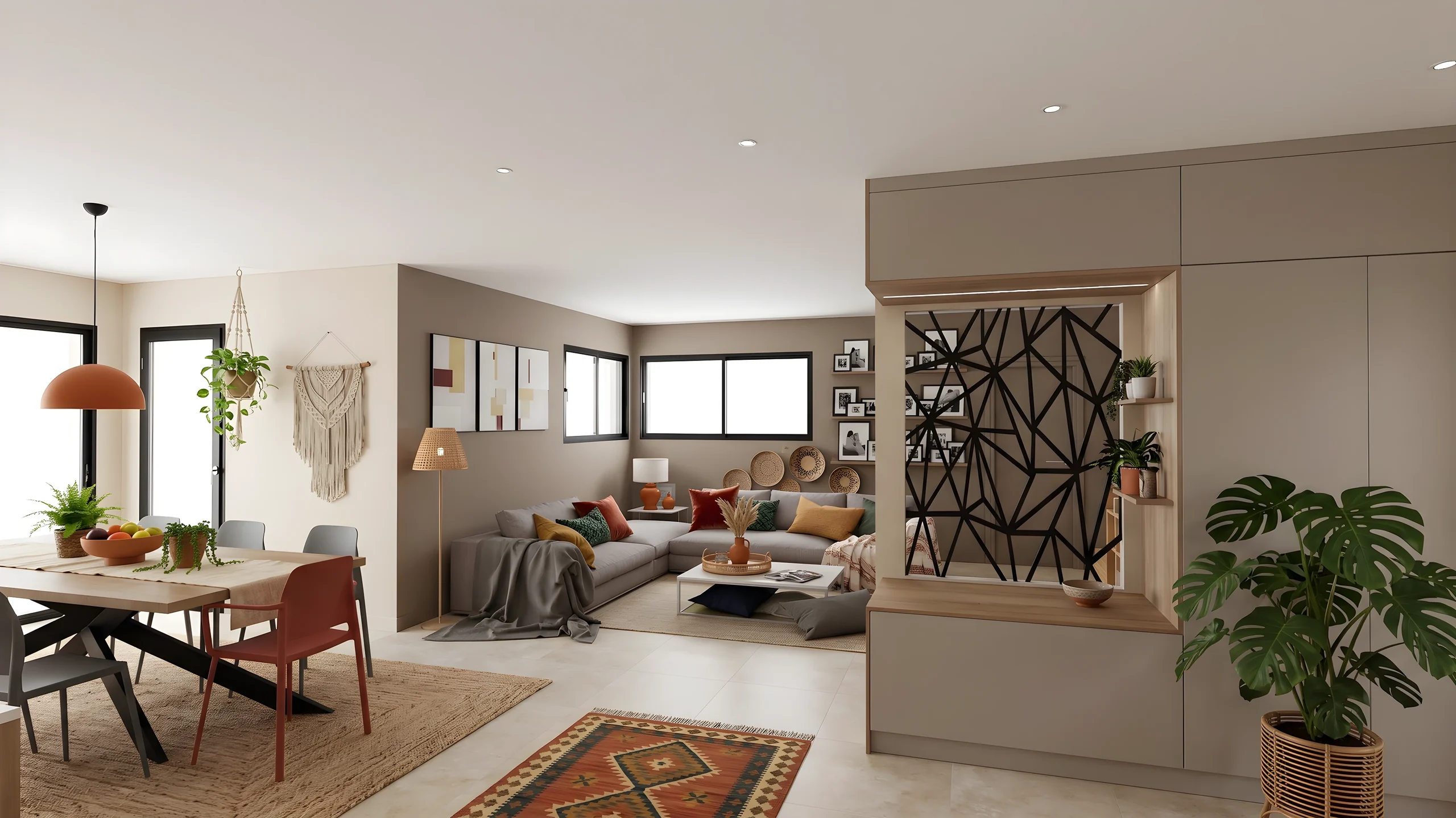 DecoratorsLet your client picture the ambiance, colors and materials before buying any furniture.
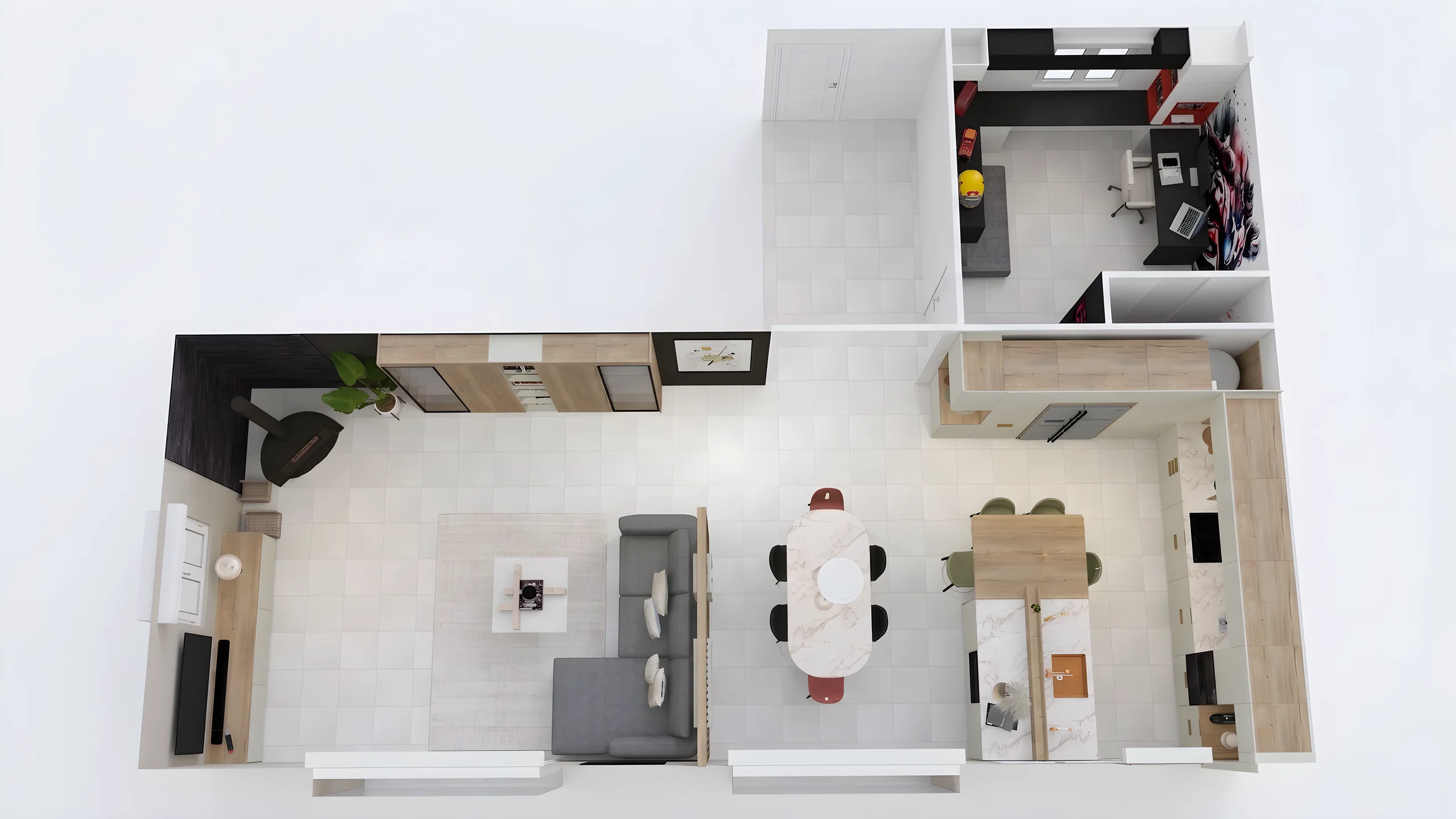 Home stagingRestyle and showcase your already-furnished listings for visuals that drive viewing requests.
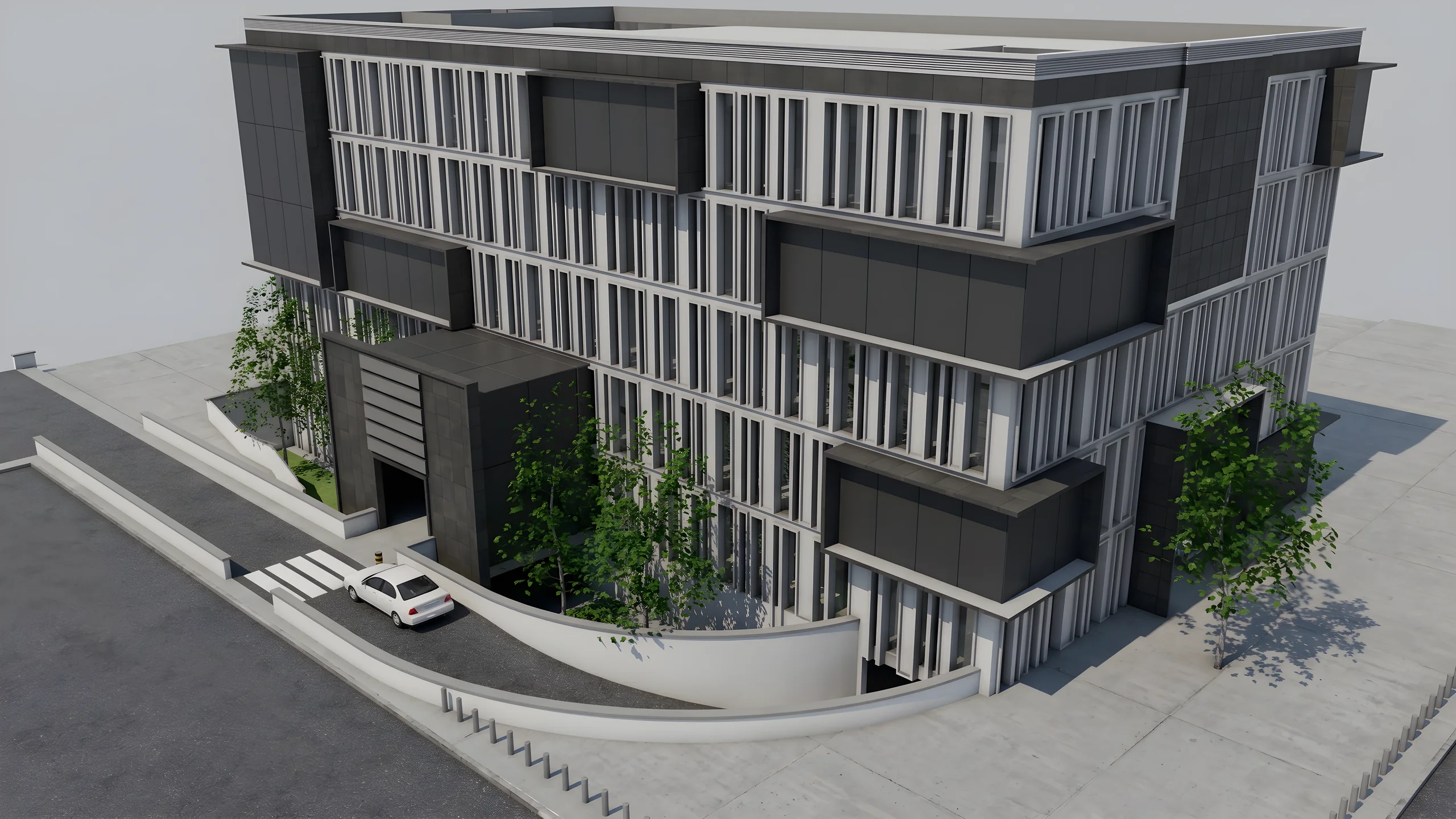 Property developersVisualize every apartment typology for off-plan sales, in minutes instead of weeks.
Read next
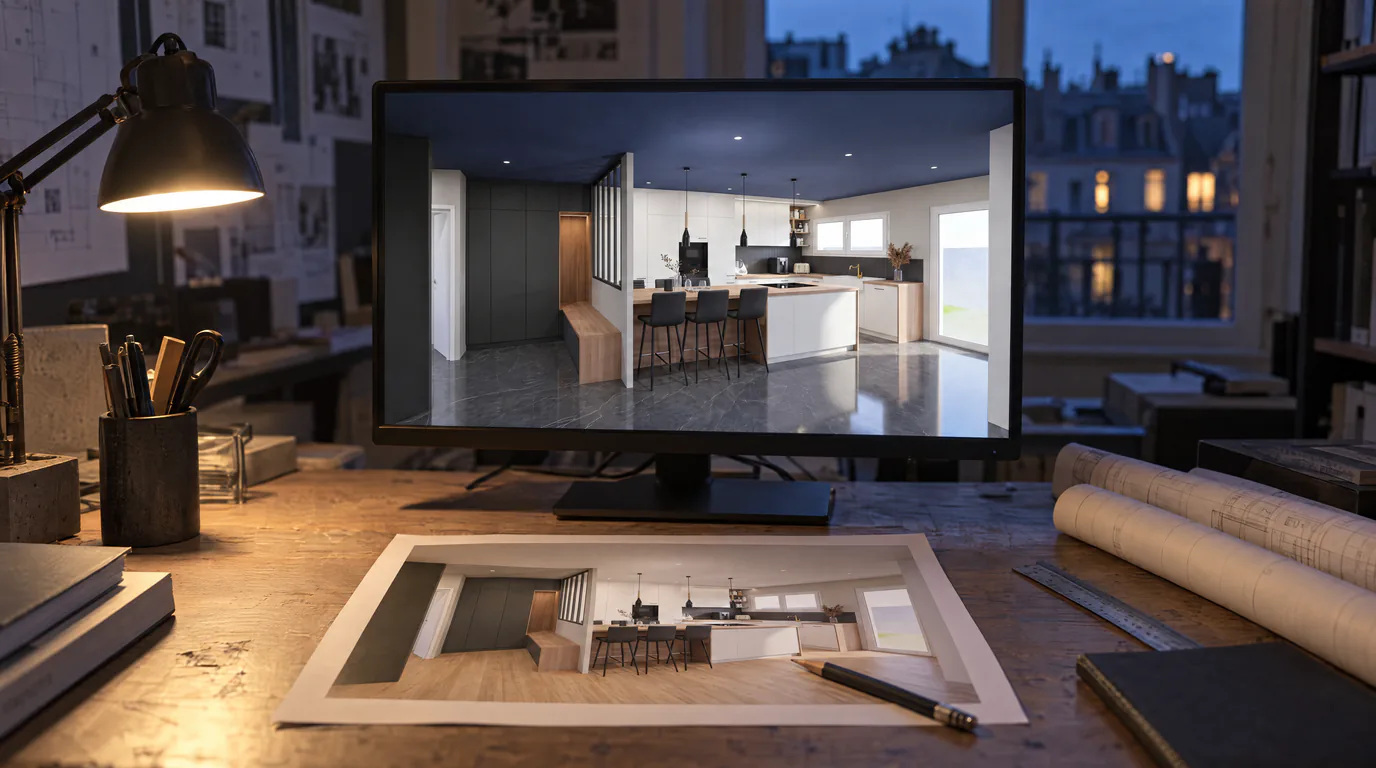 Use cases
Architects: Change Finishes on Your Renders with AI
Your client wants hardwood instead of tile? Change materials, colors and ambiance directly on the render in under a minute.
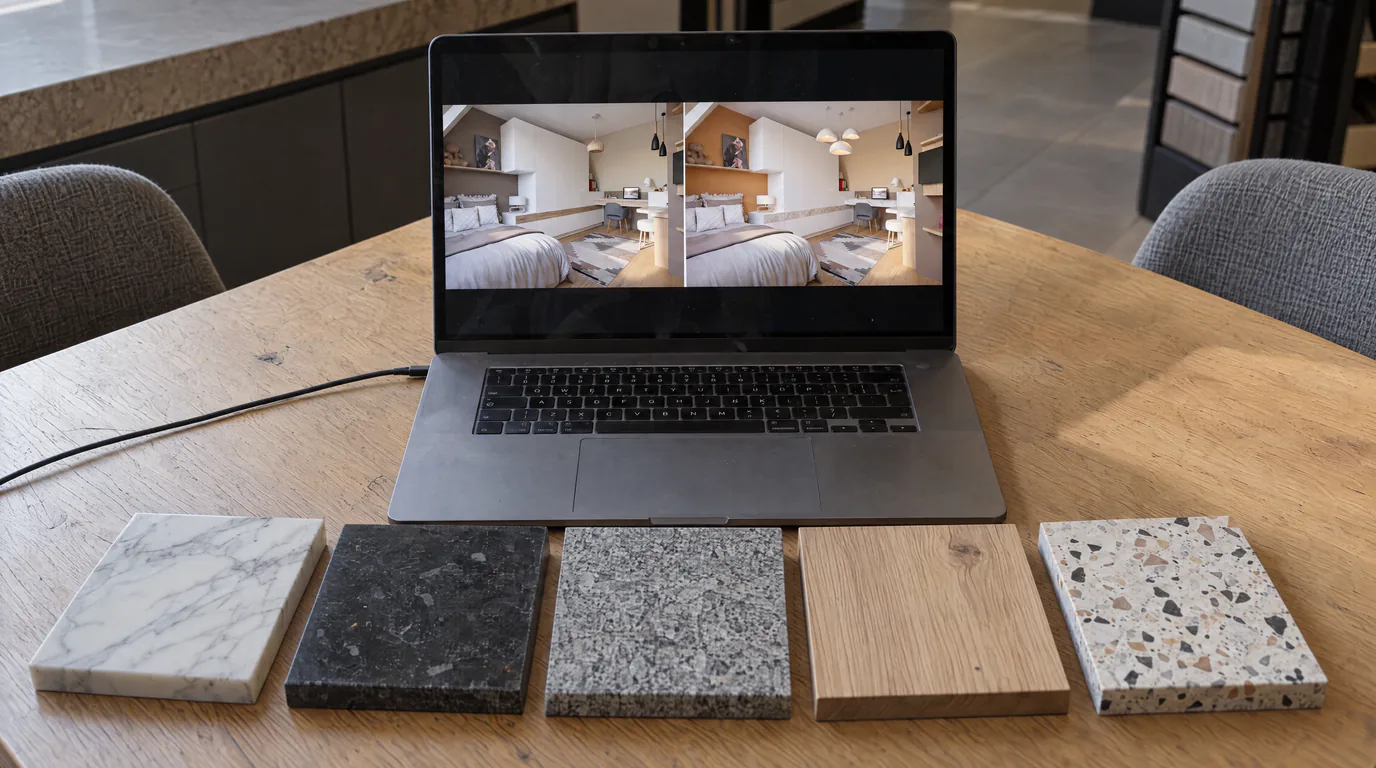 Business
10 Material Variants in 10 Minutes with AI Editing
Oak or walnut? Marble or quartz? Show every option to your client in real-time with AI-powered photorealistic render editing.
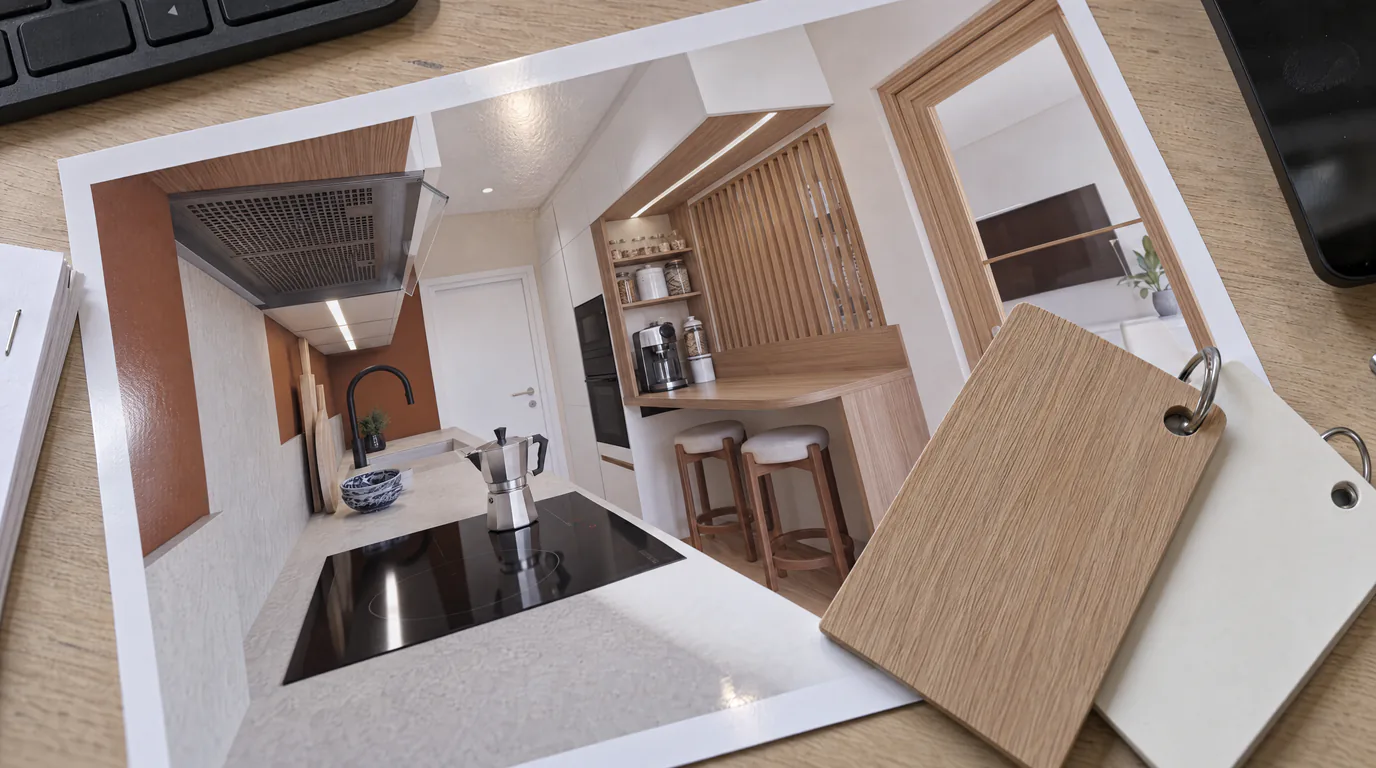 Use cases
Kitchen Designers: Edit Cabinets & Countertops with AI
Your client can't decide between oak and white lacquer? Show both options in under a minute with AI editing, without touching your Winner or InSitu project.
Try it on your own project.
Import an export, start a render, edit one zone, share the link.
14 days, no commitment