The RenderThink plugin: AI rendering inside SketchUp, InSitu and KitchenDraw
The plugin opens RenderThink in a window of your software. You frame the view, you capture, you launch: the render is computed on our servers while your model stays open, then comes back into the project, ready for editing and presentation. Nothing but the captured image leaves your machine.
14 days, no commitment
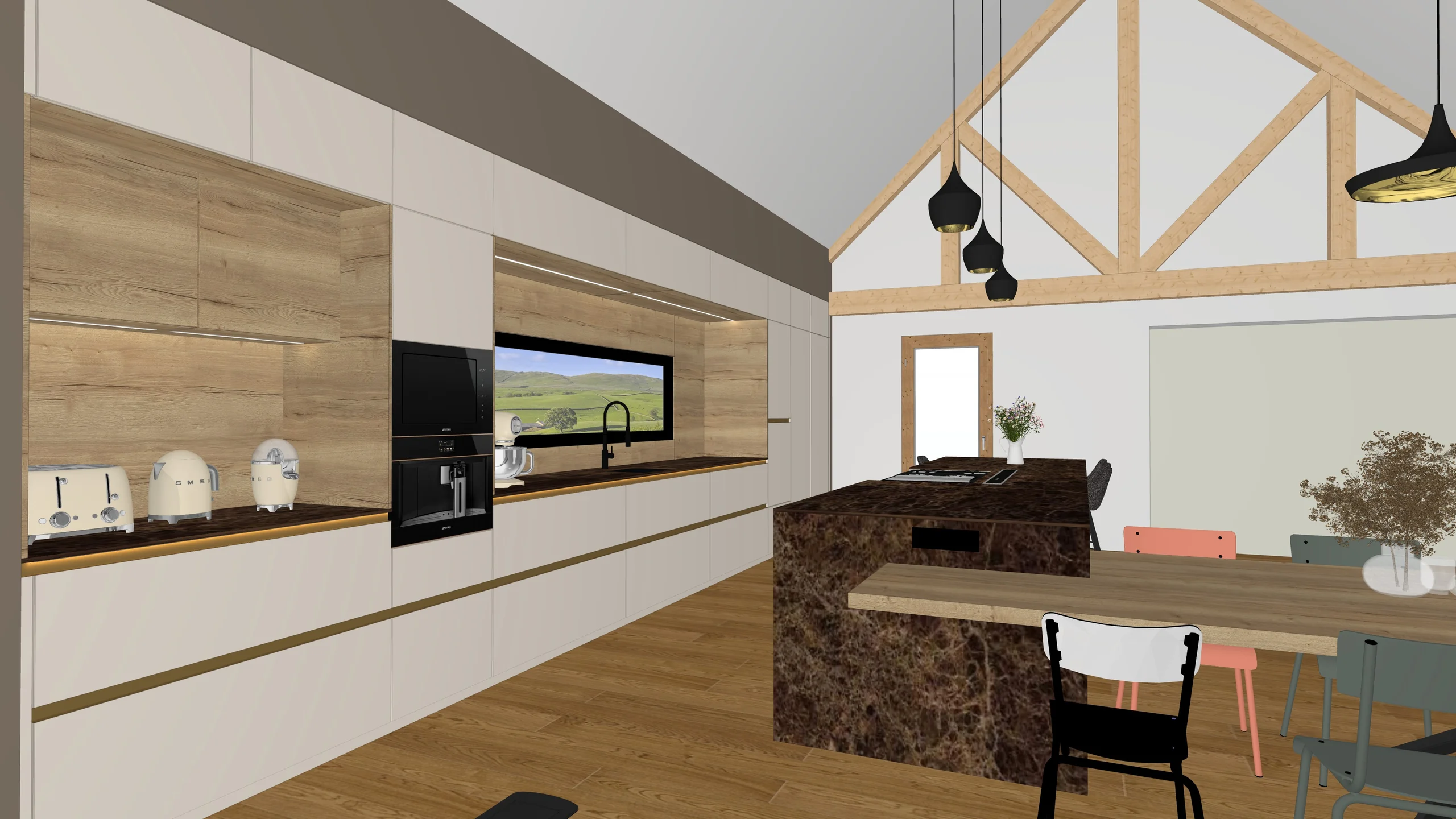
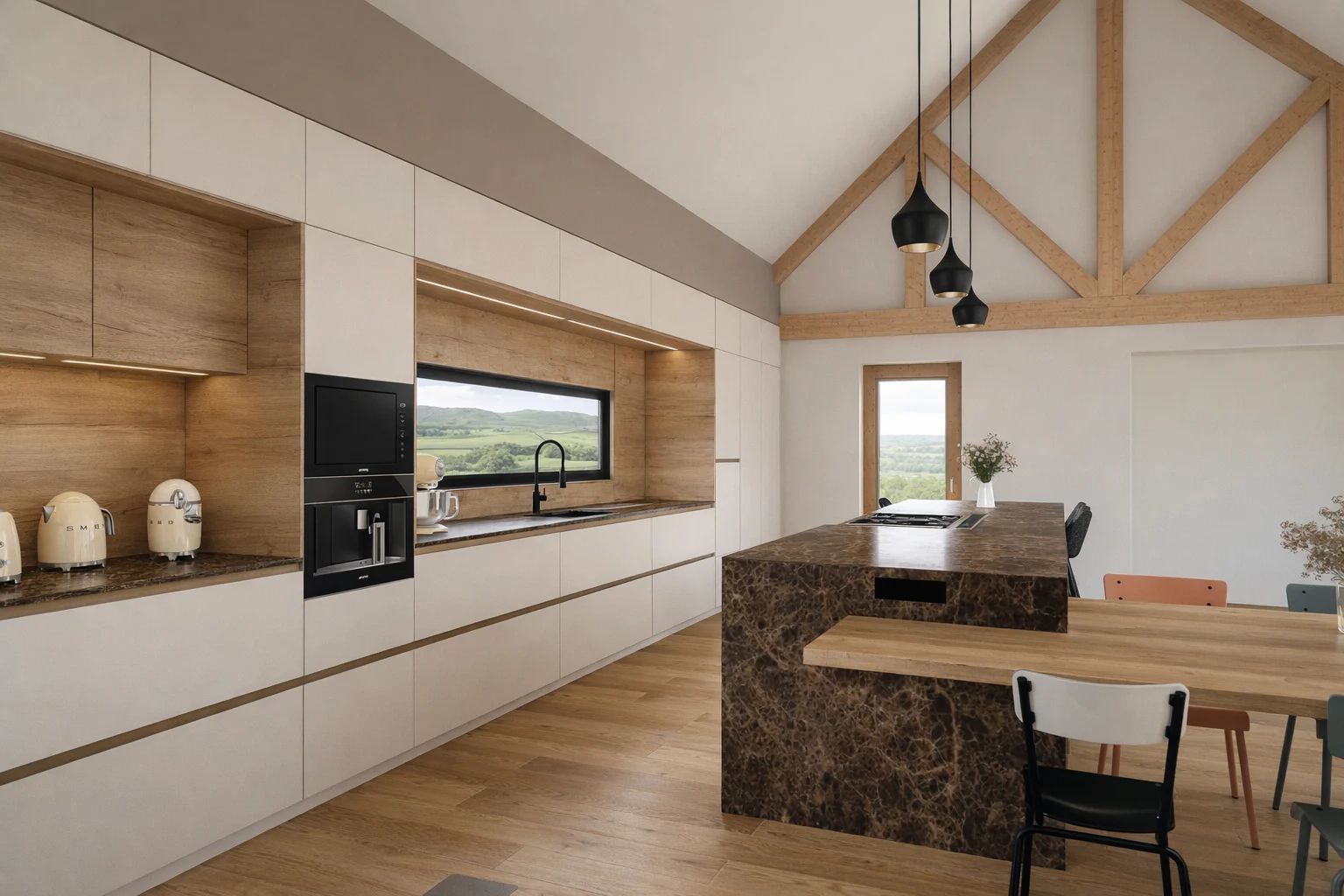
The render starts from the view on screen. Your 3D model stays open.
- 1
The displayed view is captured.
The RenderThink Studio takes the view as it is on screen. No preparation, no material or light setting.
- 2
The quality, then start.
From 1K to 8K. The computation runs on our servers; the model stays open, your machine computes nothing.
- 3
The render comes back into the project.
Faithful to the volumes, proportions and materials of the design. Ready for editing and presentation.
 Version 1.0.2
Plugin for
SketchUp
- Systems
- Windows and macOS
- Versions
- SketchUp 2024 and later
- File
- .rbz extension
- In the software
- Extensions menu and toolbar
Installation
- Download the .rbz file.
- In SketchUp: Extensions, Extension Manager, Install Extension, then pick the file.
- RenderThink joins the Extensions menu. If the entry does not show, reopen SketchUp.
 Version 1.0.1
Plugin for
InSitu and KitchenDraw
- System
- Windows
- Software
- InSitu and KitchenDraw, which share the same base
- File
- Windows installer
- In the software
- Scenes menu, under Photorealism
Installation
- Download the installer.
- Close InSitu or KitchenDraw, then run it: it sets up the plugin and checks the Windows WebView2 component.
- “RenderThink AI render” joins the Scenes menu at the next launch.
Rendering where you design
The view on screen, not an export
The plugin captures what you have on screen, as a lossless PNG. No image to export, hunt down in a folder and then upload: you frame, you launch.
Your model stays open
RenderThink opens in a window of the software, not in its place. You keep modelling while the render is computed on our servers: your machine computes nothing.
Render, staging, editing, upscaling
The window is the RenderThink Studio: a photorealistic render or the staging of the captured view, then editing or upscaling a render, without leaving your software. It is the same Studio as in the browser: same project, same qualities, same history.
The render carries on without you
Close the window, quit the software: the job keeps running on our servers. You find it again when you reopen, in the window or on the site, with no extra credit.
Your projects, your credits
The project picker is the site’s own: choose an existing project or create one from the window. The render uses the credits of your subscription, no more and no less than from the browser.
The plugin never sees your credentials
You sign in through your browser, two-factor authentication included, then allow the window in one click. The plugin keeps nothing on your machine, and an update is announced inside the window.
The rest, on RenderThink
The plugin window does rendering, staging, editing and upscaling. Moodboards and the client presentation happen on the platform, in the same project: the window takes you there in one click.
RenderThink
The desktop app
RenderThink installs from your browser, with no app store: an icon and a dedicated window, on desktop and on phone alike. An internet connection is still required.
Who it is for
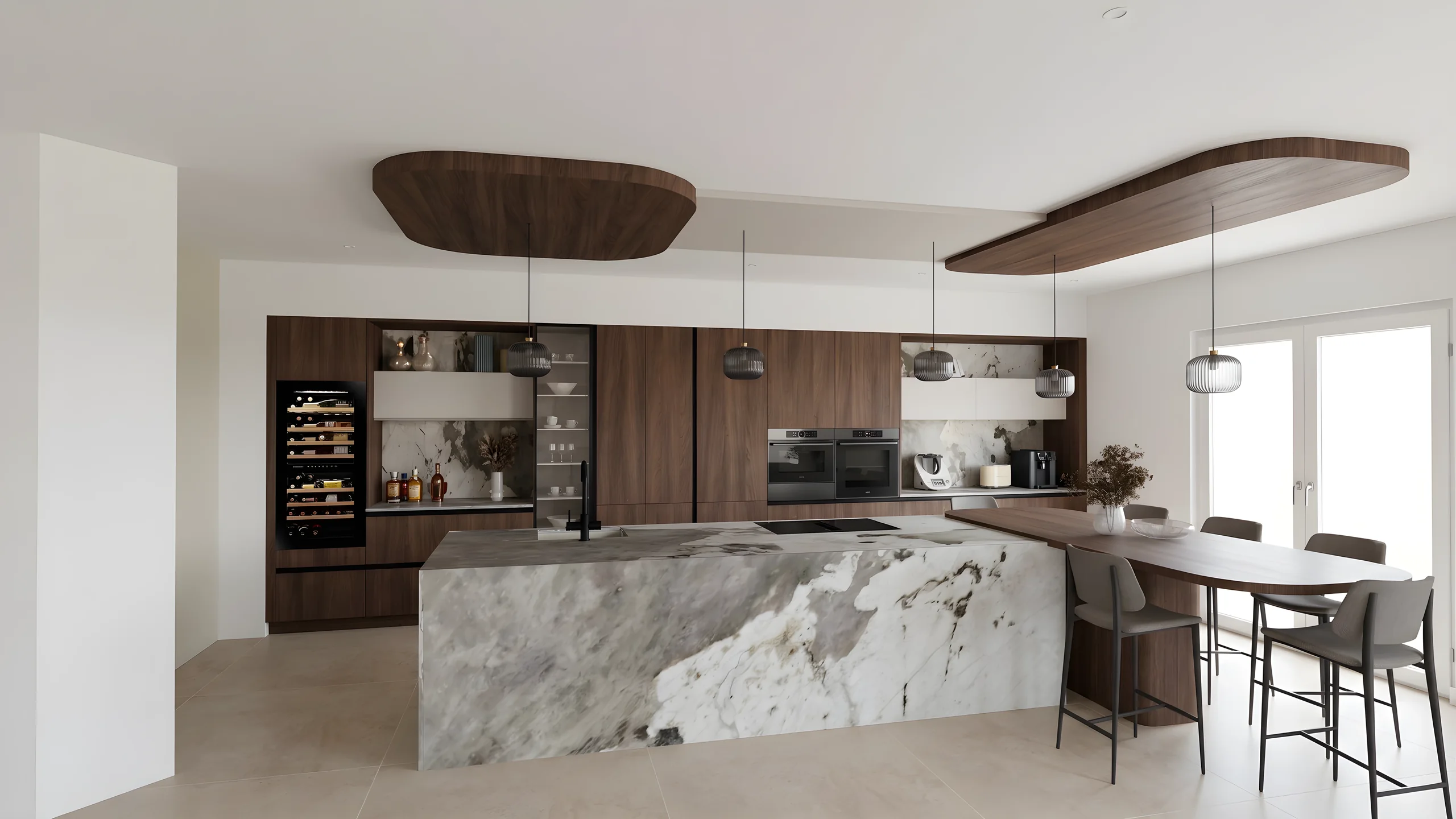 Kitchen designersTurn your Winner and InSitu exports into photorealistic renders and present them in the showroom via a secure link.
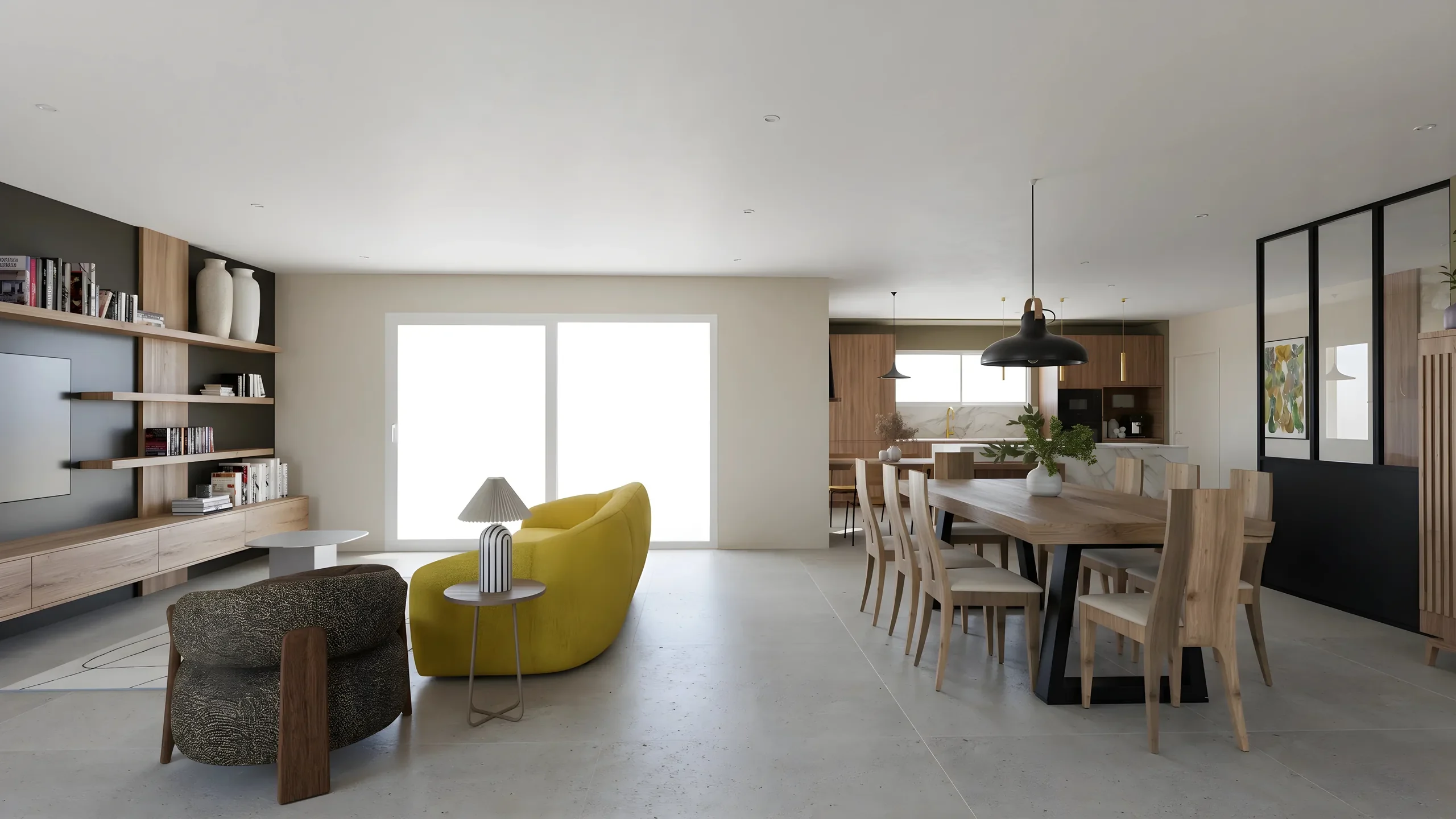 Interior ArchitectsPhotorealistic renders from your SketchUp or Revit exports, ready to present in minutes.
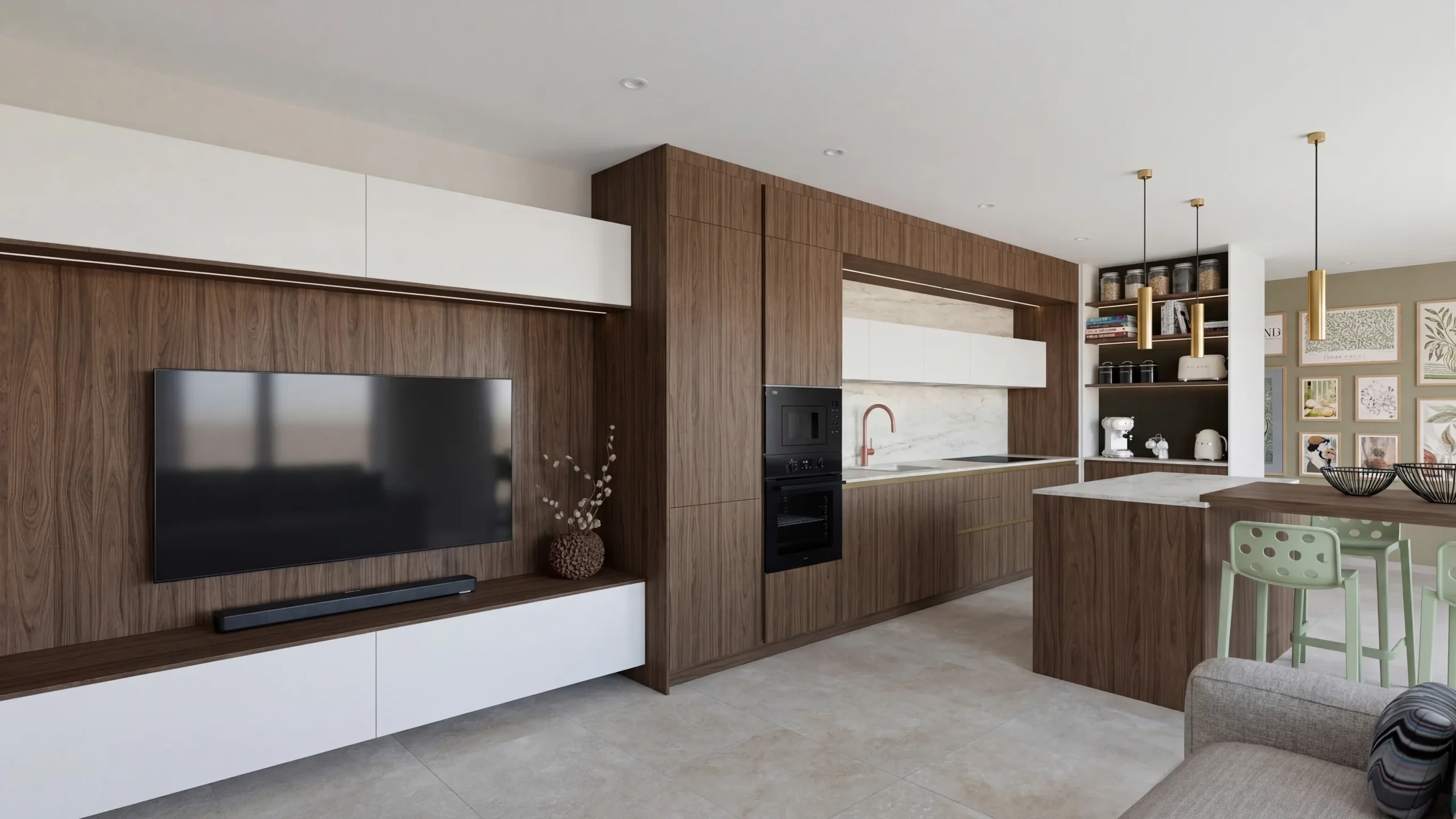 Space PlannersVisualize your office, retail and restaurant fit-outs and get them approved by your professional clients.
 DecoratorsLet your client picture the ambiance, colors and materials before buying any furniture.
Read next
 News
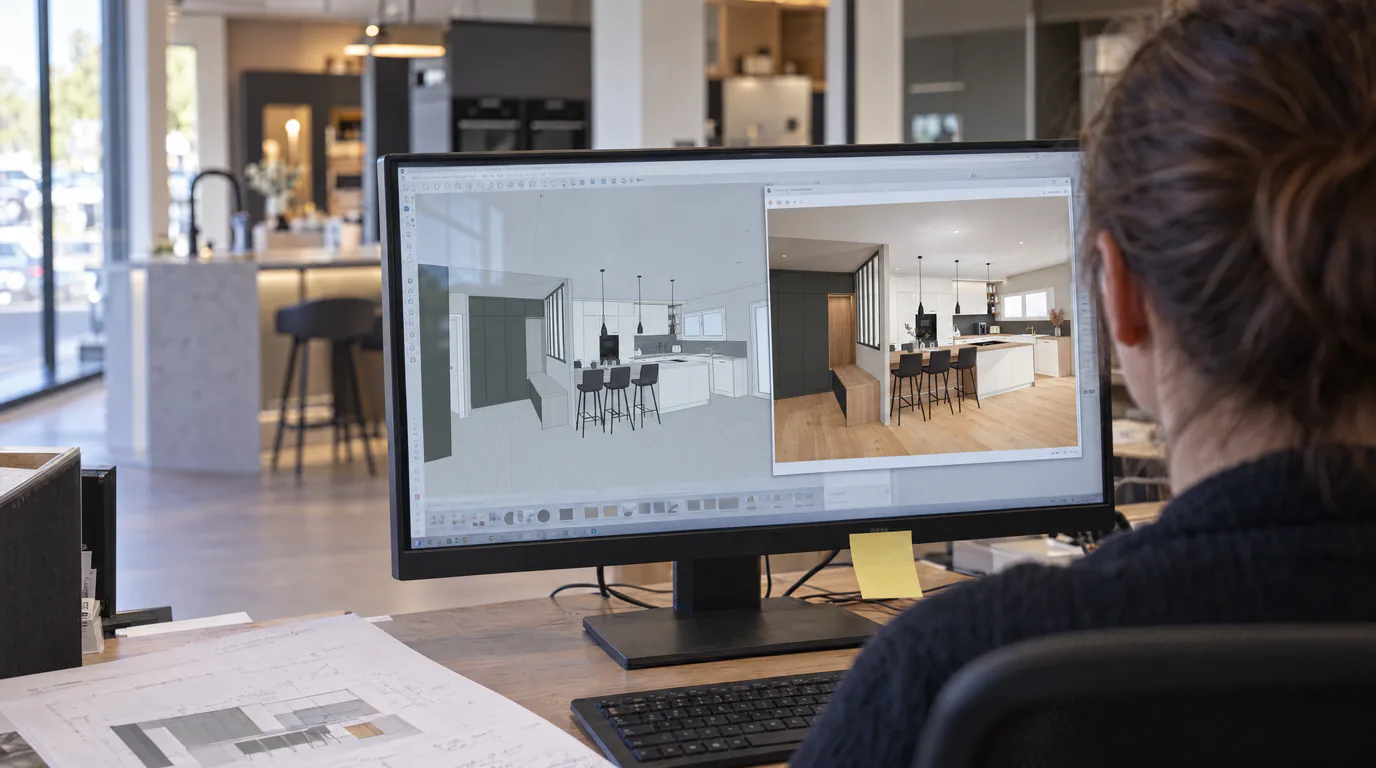
NewsRenderThink now installs inside SketchUp and InSitu
The plugin opens a RenderThink window inside your software: you frame your view, you start the render, your model stays open. No export to save, no file to hunt down. And for those who work in the browser, the app installs in two clicks.
 Guides
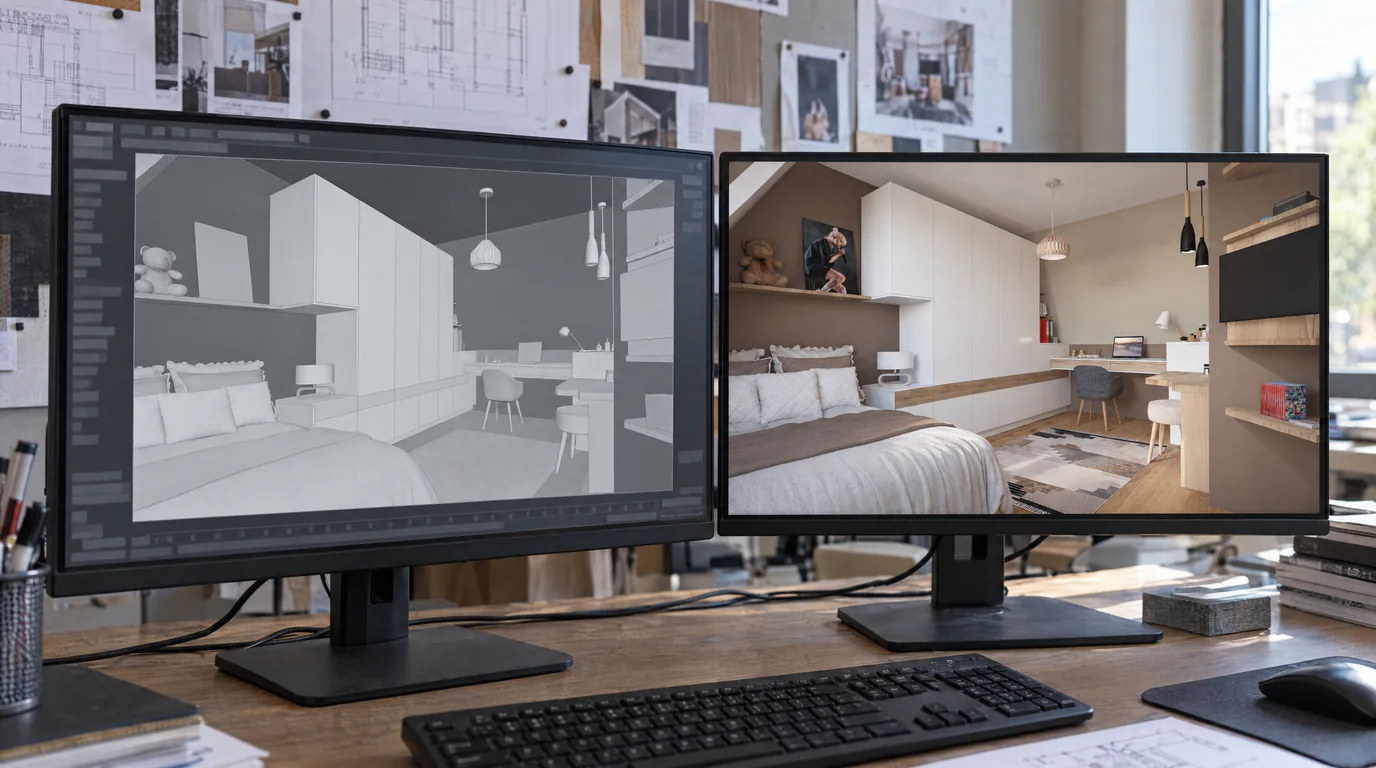
SketchUp & Winner Exports: 7 Tips for Perfect AI Renders
Practical tutorial: the export settings from SketchUp, Winner and InSitu that make the difference between a decent render and a stunning one.
 Guides
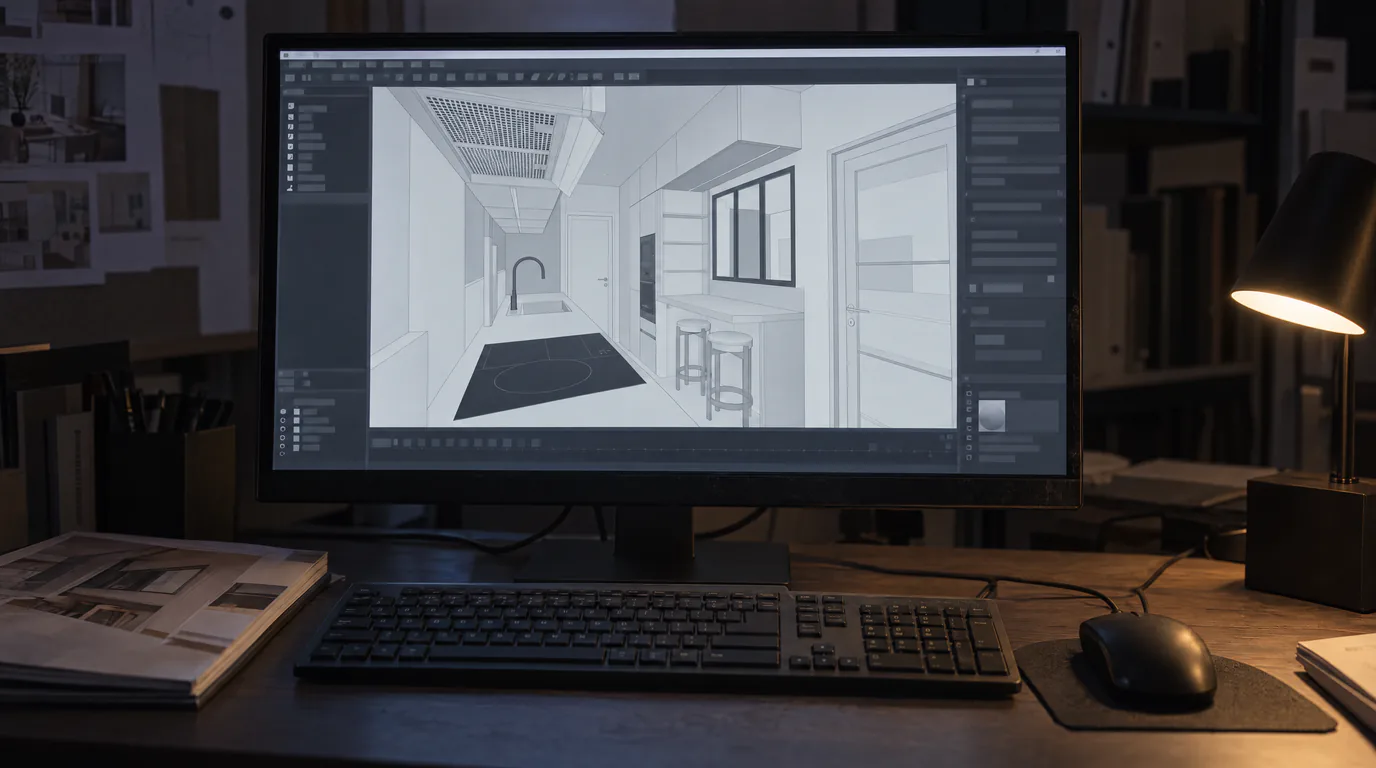
InSitu: 5 Settings for a Perfect AI Photorealistic Render
Lighting, camera, view mode and resolution: the 5 parameters to configure in InSitu before sending your scene to RenderThink for a flawless photorealistic render.
Try it on your own project.
Import an export, start a render, edit one zone, share the link.
14 days, no commitment