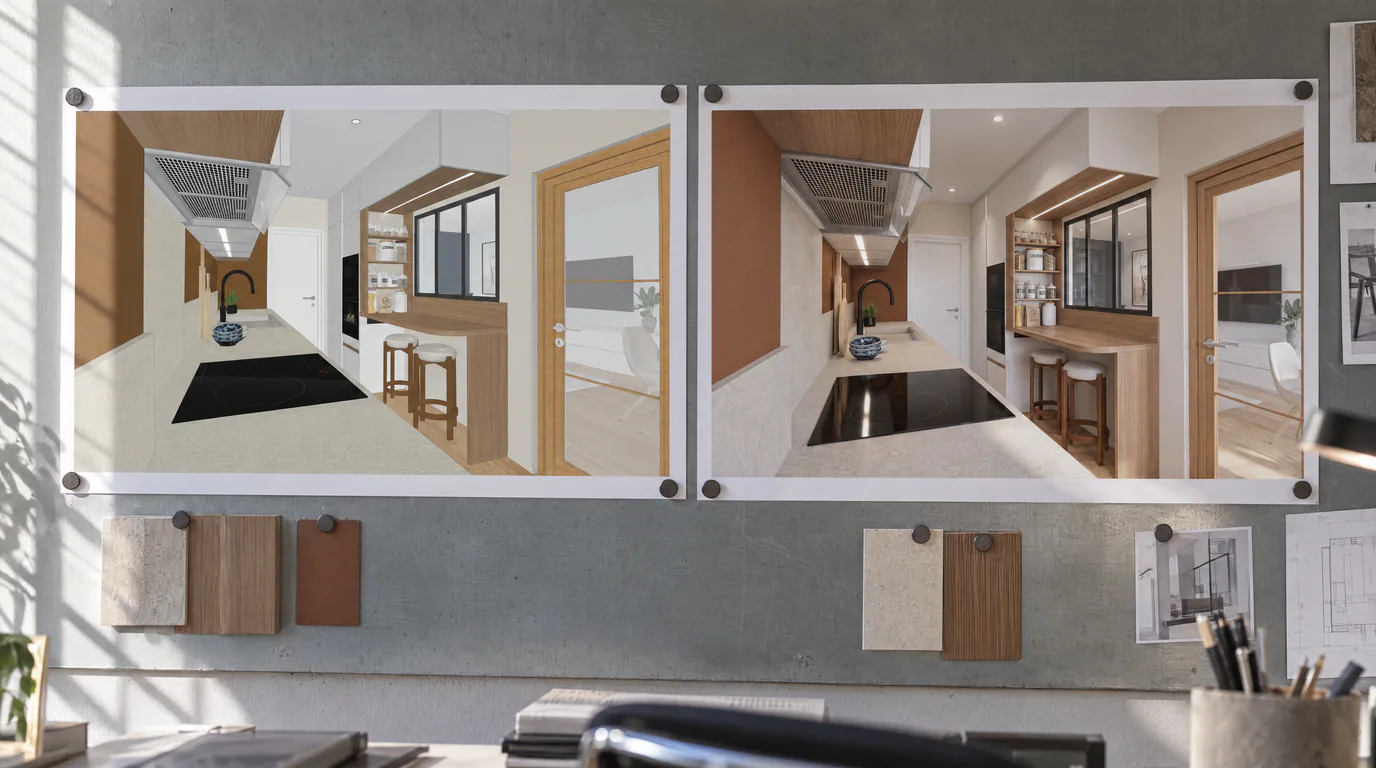
Between your model and your render, there used to be four moves: frame the view, export an image, find the file in a folder, upload it to RenderThink. Four moves that add nothing to the project, repeated for every angle, every variant, every revision after a client remark.
They are gone today. RenderThink now installs directly inside SketchUp and InSitu: you frame, you open the RenderThink window, you launch. Your model stays open behind it.
The plugin, in two lines
The plugin is not a second piece of software to learn. It is a RenderThink window inside your own: the same platform, the same projects, the same credits, simply shown without going through the browser.
The move that changes everything is the capture: the plugin takes the view in front of you and sends it to the render. No export to save, no file to hunt down, no image to upload.
In SketchUp
The extension installs from SketchUp itself: the Extensions menu, then Extension Manager, Install Extension, and you point to the file you downloaded. RenderThink then joins the Extensions menu and your toolbar, after a restart if needed. You need SketchUp 2024 or newer, on Windows as well as Mac.
Frame your scene as you would for an export, open RenderThink, capture: the view goes off to render. Everything you already know about preparing a scene still applies, starting with getting a SketchUp view ready.
In InSitu
On the InSitu and KitchenDraw side, a regular installer does the work: it puts the plugin in place, checks what it needs on the machine, and the RenderThink AI render entry appears in the Scenes menu, right below Photorealism. Windows only, like the host software.
Here too, good scene settings remain good scene settings: our guide on the InSitu settings to adjust before an AI render applies word for word, with the capture simply replacing the export.
What the window can do
It does more than send an image. You get the essentials of the workflow:
- the target project, or a new project created on the spot;
- the mode: photorealistic render, or automatic decoration to restyle an already-arranged room;
- the quality, from a quick draft to high resolution;
- the live generation queue, just like on the platform;
- saving the image to your machine, or sharing it via link, without opening the browser;
- a My renders tab to find the finished renders of a project, picked right in the window.
One thing worth knowing, because it changes how you work: generation runs on our servers. You can close the window, carry on with your layout, quit the software: the render keeps going, and it is waiting for you when you reopen, exactly as on the site.
The window deliberately does not do everything: brush editing, moodboards and client presentations stay on the platform, where the screen is roomier. A link takes you there in one click, on the right project.
Your session, your credits, your security
You sign in in your browser, two-factor authentication included, and allow the plugin window there. It then works on your account: same credits, same projects. There is no second account to create.
Two safeguards deserve to be stated plainly, because they are rarely the norm elsewhere. First, the plugin code never sees your session token: authentication stays inside the web window, out of reach of the code installed on your machine. Second, the platform address is hard-coded in the plugin and cannot be changed by any configuration file: a plugin whose target address can be changed becomes a phishing tool aimed at your account.
And if you prefer the browser: the app
The plugin is not mandatory. Uploading an image from the browser remains the default path, and it is not going anywhere.
For those who work in the browser, RenderThink also installs as an app, in two clicks, from your account menu, entry Install RenderThink. You get a dedicated window and an icon, on desktop and on phone, with no app store involved. On Safari, where the browser offers nothing on its own, a step-by-step guide walks you through it.
An honest caveat, already written here when it arrived this summer: the installed app is still a window onto RenderThink. An internet connection is required, there is no offline mode.
Where to download it
Both plugins and the step-by-step guide live on the Plugins and app page. From your account, the same window opens through the Install RenderThink entry in the menu.
Install, frame, launch. And tell us how it goes on your own projects: the next versions are shaped by your feedback, not by our tests.